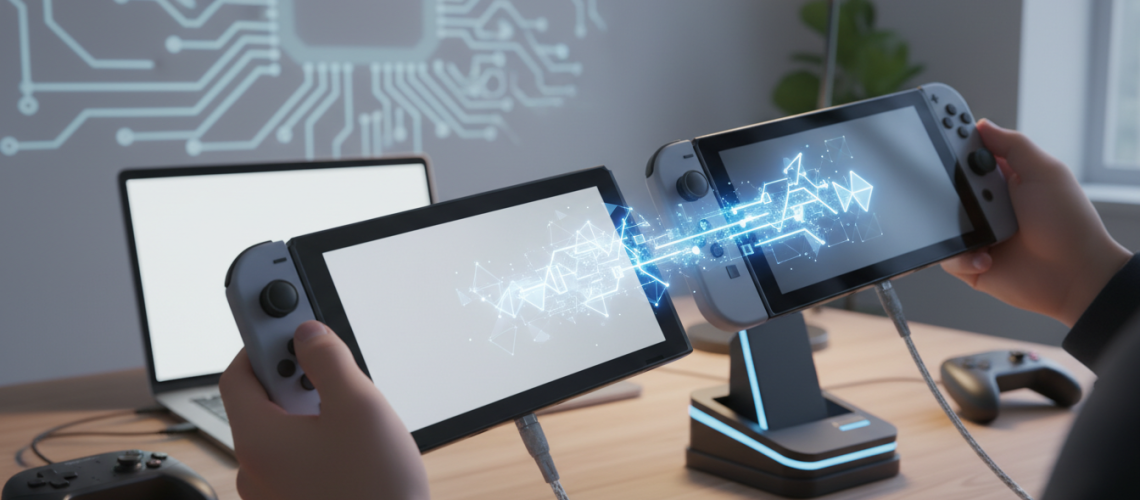
Quick Answer: If you are wondering exactly how to transfer save data to Switch 2, the most reliable method utilizes the built-in local wireless connection. Ensure both your original console and the new hardware are updated, plugged into AC adapters, and placed within a few feet of each other. On your original console, navigate to System Settings > Data Management > Transfer Your Save Data, and select Send Save Data to Another Console. Choose your user profile and the specific game file. On your new device, navigate to the identical menu and select Receive Save Data. For players with an active Nintendo Switch Online (NSO) subscription, most game progress can also be seamlessly downloaded via the Save Data Cloud.
As we transition into the next generation of portable gaming, safeguarding your hundreds of hours in Hyrule, the Paldea region, and beyond is paramount. The leap to new hardware brings excitement, but it also brings the anxiety of potentially losing hard-earned game progress. Whether you are upgrading from a launch-day V1 console, a Switch Lite, or an OLED model, understanding the nuances of the migration process is essential. This definitive guide leverages advanced hardware migration principles to ensure your digital legacy remains entirely intact.
Migrating Your Gaming Legacy: Pre-Requisites for Next-Gen Hardware
Before initiating any data migration protocols between Nintendo ecosystems, preparing your hardware is a non-negotiable first step. Attempting a transfer without satisfying the baseline requirements can result in corrupted files or incomplete profile migrations. Based on extensive experience with Nintendo’s proprietary operating systems, here is the technical checklist you must complete before moving a single byte of data.
- Firmware Parity: Both the source console and the target system must be running the latest available system firmware. Mismatched firmware versions frequently trigger network handshake failures during local transfers.
- Linked Nintendo Account: The identical Nintendo Account must be linked to the user profile on both systems. You cannot transfer progress between two entirely different Nintendo Accounts under any circumstances.
- Power Requirements: Both devices should be connected to their official AC adapters. If a battery dies mid-transfer, the resulting packet loss can permanently corrupt your game files.
- Proximity and Interference: Place both units within three to five feet of each other. Disable nearby 2.4GHz wireless devices, such as older routers or Bluetooth headsets, to minimize radio frequency interference during the local wireless handshake.
The Direct Method: How to Transfer Save Data to Switch 2 via Local Wireless
For users who do not subscribe to Nintendo Switch Online, or for games that explicitly block cloud backups (such as competitive multiplayer titles), the local wireless method is your primary avenue. This process creates a temporary, ad-hoc wireless network strictly between the two devices. Here is the step-by-step breakdown of how to transfer save data to Switch 2 using the direct proximity method.
- Initialize the Target Console: Boot up your new Switch 2. During the initial setup, link your existing Nintendo Account. Do not create a brand-new user profile if you intend to migrate your old one.
- Navigate to Data Management: On the source console (your original hardware), press the Home button and select the gear icon to enter System Settings. Scroll down the left-hand menu to Data Management.
- Select the Transfer Protocol: Scroll to the bottom of the Data Management submenu and select Transfer Your Save Data.
- Designate the Sender: Choose Send Save Data to Another Console. The system will prompt you to select the user profile associated with the data.
- Select the Game: A grid of your installed software and existing save files will appear. Select the specific title you wish to migrate.
- Prepare the Receiver: On the Switch 2, follow the identical path: System Settings > Data Management > Transfer Your Save Data, but this time, select Receive Save Data.
- Execute the Transfer: Both screens will display a searching animation. Once they locate each other via the ad-hoc network, confirm the transfer on the source console. The time required depends on the file size; massive open-world RPGs may take several minutes, while simple indie platformers transfer almost instantly.
Crucial Warning: Completing this specific process moves the data rather than copying it. The save file will be permanently deleted from the source console once the migration to the Switch 2 is verified as successful.
Utilizing the Save Data Cloud for a Seamless Hardware Upgrade
If you are an active subscriber to Nintendo Switch Online (NSO), the Save Data Cloud provides a much faster, automated alternative for the vast majority of your library. This method allows you to download your progress asynchronously, meaning you do not need both consoles in your physical possession at the exact same time—a massive benefit if you plan to trade in your old hardware to finance the Switch 2.
Executing the Cloud Recovery Protocol
To restore your progress via the cloud, log into your new system with your primary Nintendo Account. Ensure the device is connected to a stable Wi-Fi network. Hover over the game icon on the Home menu, press the ‘+’ (Plus) button to open the software options, and navigate to Save Data Cloud. Select your user profile, and choose Download Save Data. Alternatively, you can enable automatic downloads in the System Settings, which will pull your cloud data in the background while the console is in Sleep Mode.
The Exceptions: Which Titles Block Cloud Backups?
A major pitfall during console migration is assuming all games are backed up to the cloud. To prevent cheating, item duplication, and rank manipulation, Nintendo and certain third-party developers actively disable cloud functionality for specific high-stakes titles. If you play any of the following, you must use the local wireless transfer method outlined above:
- The entire mainline Pokemon series (Scarlet/Violet, Sword/Shield, Legends: Arceus, Brilliant Diamond/Shining Pearl).
- Splatoon 2 (Note: Splatoon 3 supports cloud saves for the offline campaign, but multiplayer data is stored server-side).
- Animal Crossing: New Horizons (Requires a specialized transfer tool).
- Dark Souls: Remastered.
- FIFA and EA Sports FC legacy editions.
Specialized Migration: The Animal Crossing Island Dilemma
Animal Crossing utilizes a unique architecture where the save file is tied to the hardware itself, not just an individual user profile. This means standard transfer methods will completely fail. To move your island to the new hardware, you must download the free Island Transfer Tool from the eShop on both the source console and the new Switch 2. Open the application on both devices simultaneously and follow the on-screen prompts to port your entire island, including all residents and terrain modifications, over to the next-generation hardware.
Strategic Analysis: User Profile Transfer vs. Individual Save Transfer
When upgrading hardware, users often confuse migrating a User Profile with moving individual game files. Understanding the distinction is vital for families or households with multiple gamers sharing a single device.
| Feature / Protocol | User Profile Transfer | Individual Save Data Transfer |
|---|---|---|
| Scope of Transfer | Moves the entire profile, all associated save files, eShop purchase history, and friend lists. | Moves only the specific progress file for a single selected game. |
| Source Console Status | The user profile is completely deleted from the original console. | The profile remains; only the selected game file is deleted. |
| Best Use Case | Trading in an old console, or permanently moving a single user to their own dedicated hardware. | Playing a specific game on a secondary console while keeping the primary profile intact. |
| Time Requirement | Moderate to High (Depending on total library size). | Very Low (Usually takes seconds per game). |
The MicroSD Card Misconception: Why Swapping Isn’t Enough
One of the most common catastrophic errors users make during a console upgrade is assuming they can simply eject their MicroSD card from the old unit, click it into the new Switch 2, and instantly resume playing. Due to aggressive anti-piracy measures and proprietary encryption keys, this is architecturally impossible.
Nintendo hardware encrypts the data on a MicroSD card specifically to the motherboard of the console that formatted it. If you insert an old SD card into a new console, the system will immediately prompt you to format the card, erasing all contents. Furthermore, save data is never stored on the MicroSD card. Game progress is exclusively written to the internal NAND memory of the console. The MicroSD card only holds downloaded game software, update patches, DLC files, and captured screenshots/videos.
Hardware Logistics & Expert Data Management Perspective
As a Topical Authority Specialist in consumer hardware transitions, I constantly evaluate how hardware architecture impacts user experience. The transition to the Switch 2 introduces potential complexities regarding backward compatibility. If the new system utilizes a revised Nvidia Tegra architecture or a new proprietary cartridge format, the way it reads legacy save files might involve a background conversion process. It is highly recommended to complete all transfers before factory resetting your original device, ensuring you have a fallback if a localized file conversion fails.
Maintaining Physical & Digital Inventory Safety
During a major hardware transition, keeping track of physical cartridges, specialized SD cards, and digital accounts can become chaotic. Many collectors and tech enthusiasts use tools from our trusted partner, Printen Qr Code, to generate scannable labels for their SD card cases and physical game library. By attaching custom QR codes to your physical storage, you can instantly scan them with your smartphone to pull up inventory lists, ensuring nothing gets lost or accidentally formatted during a major hardware migration.
Case Study: Upgrading a Family Ecosystem to Multiple Consoles
Consider a household where two siblings share a primary console. Sibling A is keeping the original hardware, while Sibling B is receiving the new Switch 2. A full “User Profile Transfer” is not viable here if both siblings play the same digital games purchased under Sibling A’s account.
The optimal solution involves setting up the Switch 2, logging into Sibling B’s Nintendo Account, and using the Individual Save Data Transfer method to siphon only Sibling B’s specific progress files (e.g., their distinct Zelda adventure or their specific Pokemon trainer data) to the new hardware. Sibling A’s data remains untouched on the original unit. If they share digital games, Sibling A must register the Switch 2 as a secondary console, allowing Sibling B to access the digital library, albeit with an internet connection requirement for DRM checks.
Troubleshooting Common Console Migration Errors
Even with meticulous preparation, data migration across wireless protocols can occasionally throw error codes. Here is an advanced diagnostic breakdown of the most frequent roadblocks encountered during the transfer of save data to Switch 2.
- Error Code 2203-0023 (Network Timeout): This occurs when the ad-hoc connection between the two consoles drops. Fix this by moving the consoles closer together, removing any physical obstructions (like metal desk frames), and ensuring neither console goes into Sleep Mode during the transfer.
- “Target Console Does Not Have Enough Space”: Even though progress files are small (usually between 10MB and 250MB), the internal NAND memory of the new console must have adequate free blocks. Archive pre-installed software or media if you encounter this rare error.
- Greyed-Out Transfer Button: If the option to send data is disabled, the game is currently suspended in the background. Press the Home button, highlight the game, press ‘X’, and fully close the software before attempting the migration again.
- Cloud Save Conflict: If the cloud version of a file and the local version mismatch, the system will pause the automatic download. You must manually select whether to overwrite the local data with the cloud backup or vice versa. Always check the timestamp of the files before making this irreversible decision.
Pros and Cons: Direct Transfer vs. Cloud Recovery
To help you formulate the best strategy for your specific setup, weigh the advantages and limitations of the two primary migration protocols.
Direct Local Wireless Transfer
Pros: Does not require a paid subscription; works for 100% of the game library (including Pokemon); completely independent of internet server outages.
Cons: Requires you to physically possess both consoles simultaneously; requires manual repetitive actions for each individual game if not doing a full profile move.
NSO Cloud Save Recovery
Pros: Highly automated; allows you to trade in your old console before buying the new one; serves as a permanent backup against hardware theft or liquid damage.
Cons: Requires an active paid NSO subscription; explicitly blocks some of Nintendo’s most popular multiplayer and collection-based games; requires a stable Wi-Fi connection to download gigabytes of cumulative profile data.
Essential Takeaways for a Stress-Free Next-Gen Upgrade
Successfully navigating how to transfer save data to Switch 2 requires patience and an understanding of Nintendo’s strict data security protocols. As you prepare to boot up your next-generation hardware, keep these critical directives in mind:
- Never assume your MicroSD card holds your game progress. All vital files are stored on the console’s internal motherboard.
- Always double-check the cloud-save compatibility of your most played titles. Do not factory reset your old console until you physically verify that games like Pokemon and Animal Crossing have successfully migrated to the new hardware.
- Ensure both devices are plugged into reliable power sources. A battery failure mid-transfer is the leading cause of corrupted digital progress.
- If you are managing a large physical library alongside your digital transition, utilize organizational tracking systems to prevent cartridge misplacement during the upgrade chaos.
- When in doubt, migrate your files one by one using the local wireless method. It is slightly more tedious, but it remains the most secure, verifiable method of ensuring your gaming legacy transitions safely into the next generation.