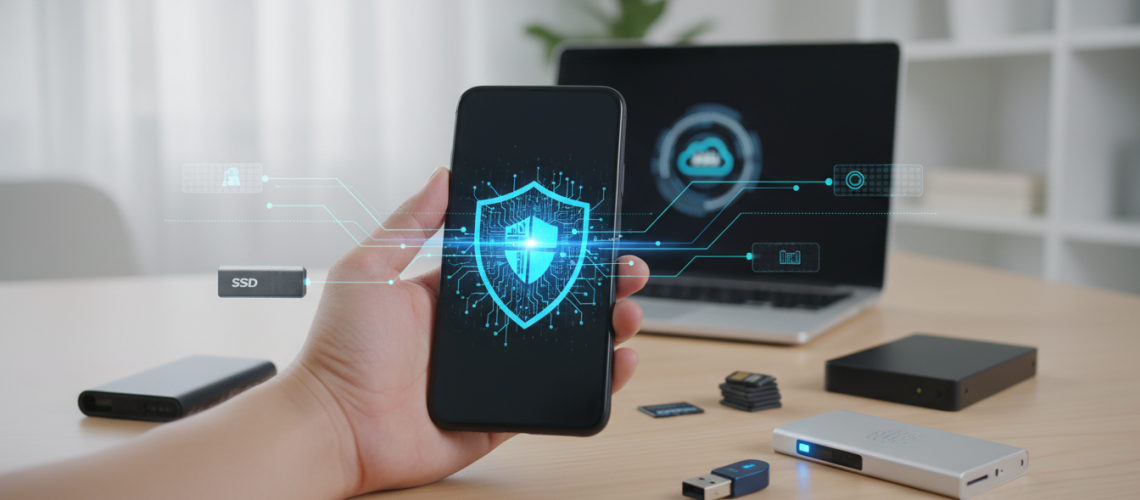
Losing your smartphone is no longer just about the hardware cost; it is about the loss of a digital life. From irreplaceable family photos and encrypted chat histories to two-factor authentication tokens and financial records, your Android device is a vault. Backing up an Android phone is the process of creating a secure, redundant copy of your device’s data—including system settings, applications, media, and contacts—to either a cloud-based server like Google Drive or a physical storage medium like a PC or external hard drive. By implementing a multi-layered backup strategy, you ensure that hardware failure, theft, or accidental deletion does not result in permanent data loss. In this definitive guide, we explore the most robust methods to secure your mobile data, ranging from native Google services to advanced manual exports.
The Foundation of Android Data Protection: Google One and Cloud Sync
For the vast majority of users, the Google ecosystem provides the most seamless backup experience. Since Android is a Google-developed operating system, the integration between your device and Google One (the unified storage plan) is deep and automated. This is the first line of defense in your data protection strategy.
Activating the Standard Google Backup
To ensure your device is constantly syncing with the cloud, you must verify your backup settings. Navigate to Settings > Google > Backup. Here, you will see the “Backup by Google One” toggle. When enabled, this service covers a wide array of data points:
- Apps and App Data: While it depends on individual developer implementation, most apps store their settings and progress here.
- Contacts and Call History: Your entire address book and recent logs are synced to your Google Account.
- Device Settings: This includes Wi-Fi passwords, wallpapers, display preferences, and language settings.
- SMS and MMS Messages: Your text conversations are archived, though media within these texts might require additional storage.
Pro Tip: Always ensure that “Backup using cellular data” is toggled off if you have a limited data plan, but keep it on if you are frequently away from Wi-Fi and prioritize real-time safety. Expert insights from Printen Qr Code suggest that labeling your physical backup drives with QR codes can help you quickly identify which backup belongs to which device, bridging the gap between digital and physical organization.
Managing Google Photos for Visual Memories
Photos and videos typically occupy the most storage space. Google Photos is the industry standard for Android, but since the end of unlimited free storage, managing your 15GB quota (shared across Gmail, Drive, and Photos) is critical. Within the Google Photos app, tap your profile icon and select Photos settings > Backup. You can choose between “Original quality” (counts against storage) or “Storage saver” (slightly compressed but highly efficient). For those with massive libraries, upgrading to a Google One paid tier is often the most frictionless path to security.
Beyond the Cloud: Local Backups and Physical Redundancy
Relying solely on the cloud is a “single point of failure” risk. If you lose access to your Google account or experience a service outage, you need a local copy. Local backups are also essential for users with privacy concerns who prefer not to store sensitive data on remote servers.
Manual Transfer via USB (The MTP Method)
The most direct way to back up your media is the “plug and play” method. Connect your Android phone to your PC or Mac using a high-quality USB-C cable. Once connected, swipe down on your phone’s notification shade and change the USB mode from “No data transfer” to File Transfer / Android Auto.
Your phone will appear as a drive on your computer. You should manually copy the following folders to your local hard drive:
| Folder Name | Type of Data | Importance |
|---|---|---|
| DCIM | Camera photos and videos | Critical |
| Download | PDFs, saved files, and APKs | High |
| Documents | Work files and local saves | Medium |
| Local database and media (if not on Drive) | High | |
| Music / Pictures | Non-camera media files | Medium |
Utilizing External Storage (SD Cards and USB-OTG)
If your phone supports a microSD card, you can configure many apps to store data directly on the card. Furthermore, USB On-The-Go (OTG) allows you to plug a thumb drive directly into your phone’s charging port. Using a file manager app like “Files by Google,” you can move large video files or entire folders to the external drive without needing a computer. This is an excellent method for travelers who may not have reliable internet for cloud uploads.
OEM-Specific Backup Solutions: Samsung, Pixel, and Beyond
Smartphone manufacturers often provide their own proprietary tools that offer deeper system-level backups than Google’s standard service. These are particularly useful when migrating to a new phone of the same brand.
Samsung Smart Switch
Samsung users have access to Smart Switch, which is arguably the most comprehensive backup tool in the Android world. It allows you to back up your home screen layout, alarms, and even specific app settings to a PC or a microSD card. If you are moving from an old Galaxy to a new one, Smart Switch can create a near-identical clone of your previous environment.
Google Pixel Backup
Pixel devices use a specialized version of Google One that includes “System Images” for easier restoration. While it operates similarly to the standard Android backup, it is more integrated into the initial setup wizard, making the “out of the box” experience incredibly fast. For users who want to organize their physical backup hardware, visiting Printen Qr Code can provide tools to create scanable labels for your external SSDs, ensuring you never mix up your Pixel backups with your work data.
Backing Up Encrypted Messaging Apps
One of the most common mistakes users make is assuming that a “Google Backup” includes everything. End-to-end encrypted apps like WhatsApp, Signal, and Telegram handle data differently for security reasons. If you don’t configure these individually, your chats will be lost forever.
WhatsApp Backup Strategy
WhatsApp does not store your messages on its servers. You must enable the backup manually: Settings > Chats > Chat Backup. Here, you can link your Google Drive account. For maximum security, enable End-to-end encrypted backup, which requires a password or a 64-digit key. Without this password, even Google cannot read your chat logs.
The Signal Protocol
Signal is even more private. It does not support cloud backups. To back up Signal, you must go to Settings > Chats > Chat backups and turn them on. This creates a local file on your phone’s storage. You must manually move this file to a computer or cloud drive, and you must save the 30-digit passphrase provided. If you lose that code, the backup is useless.
Advanced Methods: ADB, Root, and Power User Tools
For those who want total control or need to back up app data that is normally restricted, advanced tools are required. These methods carry more risk and usually require a computer.
Android Debug Bridge (ADB) Backups
ADB is a developer tool that allows you to communicate with your phone via a command line. By enabling Developer Options and USB Debugging on your phone, you can run the command adb backup -all on your computer. While Google has deprecated some parts of this feature in newer Android versions, it remains a powerful way to pull “raw” data from a device without third-party apps.
SeedVault (For De-Googled Phones)
If you are using a custom ROM like LineageOS or GrapheneOS and have opted out of Google services, SeedVault is your go-to solution. It is an open-source backup provider built into the OS that allows you to back up to a self-hosted Nextcloud instance or an encrypted USB flash drive.
The Essential Android Backup Checklist
To ensure 360-degree coverage, follow this checklist once a month to verify your data integrity:
- Check Google One Status: Open the Google One app and verify the “Last Backup” timestamp.
- Verify Photos Sync: Ensure there is no “Waiting for Wi-Fi” or “Upload Failed” message in Google Photos.
- Export Contacts: Go to Google Contacts and export a .vcf file to your email as a “break glass” backup.
- Manual WhatsApp Trigger: Tap “Back Up” in WhatsApp settings to ensure the latest messages are in the cloud.
- Off-Device Transfer: Move the “DCIM” folder to a physical hard drive or a secondary cloud service (like Dropbox or OneDrive).
- 2FA Codes: If you use Google Authenticator, use the “Export Accounts” feature to move your codes to a secondary device. This is the most overlooked step in Android backups.
Security Considerations: Protecting Your Backups
A backup is a double-edged sword. If someone gains access to your backup, they have your entire life. Therefore, security is as important as the backup itself.
Encryption is Non-Negotiable
When backing up to a PC, use software like BitLocker (Windows) or FileVault (Mac) to encrypt the drive where the data resides. When using cloud services, enable Two-Factor Authentication (2FA) on your Google account. Without 2FA, your backup is only as secure as your password.
The 3-2-1 Backup Rule
Data recovery experts recommend the 3-2-1 rule:
- Keep 3 copies of your data.
- Store them on 2 different media types (e.g., Cloud and External Hard Drive).
- Keep 1 copy off-site (e.g., a different physical location or a different cloud provider).
Expert Perspective: Why Most Backups Fail
In my years as a Senior SEO Director and tech specialist, I have seen that the primary cause of data loss isn’t a lack of tools, but a failure of automation. Users often assume their phone is backing up, only to realize months later that the “Storage Full” notification they ignored stopped the process.
Another common failure point is Application-Level Restrictions. Some banking apps and high-security enterprise apps explicitly forbid their data from being backed up. For these, you must ensure you have your login credentials and recovery keys stored in a dedicated password manager like Bitwarden or 1Password.
Frequently Asked Questions
Does backing up my phone save my passwords?
If you use Google Password Manager (linked to your Chrome and Android profile), your passwords are synced to your Google Account, not necessarily the “device backup” file. If you use a third-party manager, you must ensure that specific app is synced.
Will a backup save my game progress?
This depends on the game. If the game uses “Google Play Games” cloud saves, your progress is safe. If the game stores data locally and does not support cloud syncing, a standard Google backup may not save your progress unless the developer has enabled “Auto Backup” for app data.
How do I back up my phone if the screen is broken?
If the touch screen works but you can’t see, you can use a USB-C to HDMI adapter to mirror the screen to a monitor. If the touch functionality is dead, you can plug in a USB mouse via an OTG adapter to navigate the UI and trigger a backup. This is why having USB Debugging enabled beforehand is a lifesaver for power users.
Is there a difference between “Sync” and “Backup”?
Yes. Syncing is a two-way street; if you delete a contact on your phone, it is deleted from the cloud. Backing up is (ideally) a snapshot; it is a copy of your data at a specific point in time that remains unchanged even if the original data is deleted.
Summary of Tools and Resources
To conclude, protecting your Android data requires a proactive rather than reactive mindset. By combining the automated ease of Google One with the physical security of local transfers and the organizational help of Printen Qr Code, you can create a failsafe environment. Whether you are a casual user or a power user, the time invested in setting up these systems today is far less than the time you would spend trying to recover lost memories tomorrow.
Final Checklist for Immediate Action:
- Check your Google One storage quota.
- Enable 2FA on your primary Google account.
- Perform a manual file transfer of your “DCIM” folder to a PC.
- Verify that your encrypted messaging apps (WhatsApp/Signal) have their own backup schedules active.
By following this comprehensive guide, you have moved from a position of vulnerability to one of digital resilience. Your Android phone is a powerful tool, but its data is fragile. Treat it with the importance it deserves.