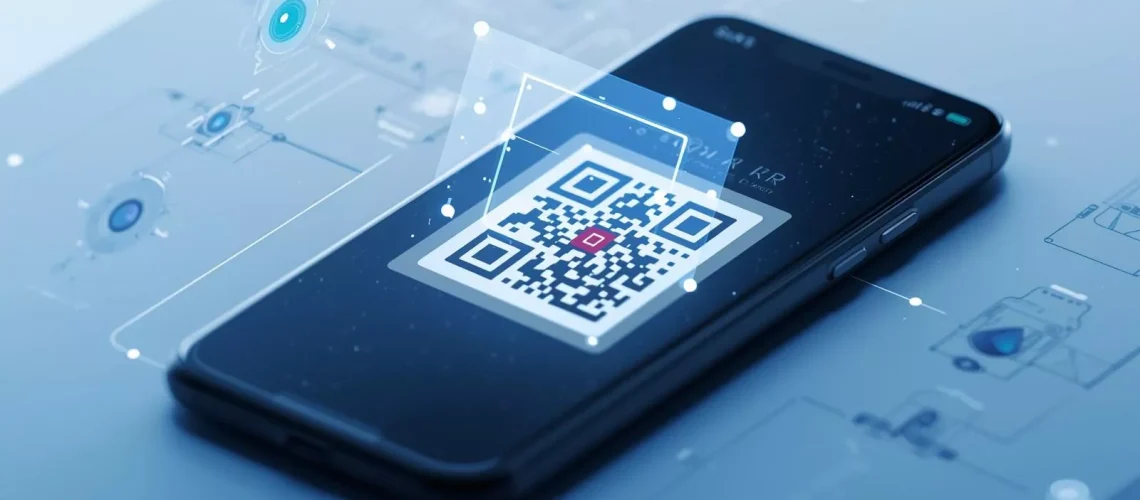
Scan a QR code the contemporary digital world needs, QR codes are omnipresent in tickets to events, menus at restaurants, wrapping of products, and even email correspondence. But in case you receive a QR code as a screenshot, what is your course of action? There is no need to panic; it is still very easy to scan QR codes from images or screenshots through several hassle-free methods.
The manual has the details on how to scan a QR code from a screenshot on your mobile device or computer along with hints, comparisons, and real instances.
What Does It Mean to Scan a QR Code from a Screenshot?
Reading a QR code from a screenshot means reading or decoding a previously saved image of the QR code rather than scanning it directly using a camera. This works well, for example, when someone has shared a QR code via email, chat, or social media. You can first open the screenshot and then use a QR Code Scanner Online or even your phone’s built-in tools to extract the link or information encoded in the screenshot. This is a fast and convenient way to read QR codes anytime, anywhere without the need to print.
How Screenshots Compare with Live-Camera Scanning
Using a camera to take a picture of a QR code is a slower and less convenient method than scanning a screenshot. You can upload or open the image directly in a QR Code Scanner online or in your gallery app instead of using your phone’s camera for a physical code. This method works great for QR codes which are sent through messages, emails, or social media.
Key Points:
- No need to align the camera or print.
- It works with saved images and screenshots.
- Only take the time to upload and it will be scanned faster access.
- Poor lighting or glare may cause errors in scanning, but this method eliminates the problem.
- The method is great for digital use cases.
Technology Behind Reading QR Codes from Images
Modern devices use AI-based recognition to detect square patterns, even from low-quality images. These tools scan QR code from image by analyzing pixel contrast and alignment points.
Common Limitations
- Blurry or low-resolution screenshots may fail to scan.
- Cropped or partially visible QR codes can cause decoding errors.
- Some dynamic QR codes may expire over time.
Case Study: Real-World Example of Screenshot QR Code Use
Scenario – Event Ticket Shared via Screenshot
A user received a concert e-ticket as a screenshot through WhatsApp. Instead of printing it, they tried scanning it using their phone.
Outcome – Successful Scan and Quick Entry
The user utilized Google Lens to scan a QR code directly from a screenshot and was able to open the ticket verification page immediately.
- Lessons Learned
- High quality screenshots are easy to scan.
- Using a reputable QR Scanner app is more accurate.
- Always remember to double-check links prior to clicking for safety.
How to Scan a QR Code from a Screenshot - Step By Step
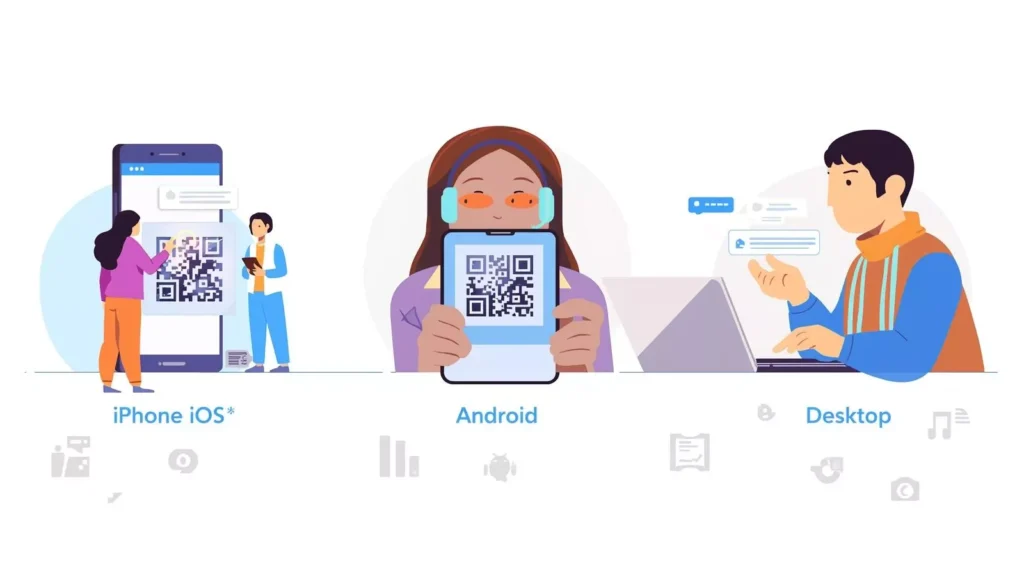
On iPhone (iOS Devices)
- Open the Photos app and locate the screenshot.
- Tap and Hold on the QR code within the image.
- It will then pop up the QR code that decodes the link, click to open the link.
- Alternatively, open Camera → Gallery → Scan from Photos in newer iOS versions.|
On Android Devices
- Open the Google Lens app (or tap the Lens icon in your gallery).
- Choose the screenshot containing the QR code.
- The app will automatically scan QR code from image and show the link.
- Tap the result to open or share it.
On Desktop/Laptop
- Visit a QR Code Scanner Online website.
- Upload your screenshot.
- Click “Scan QR Code” and wait for the results.
- Copy or open the link displayed.
You can feel free to scan QR code for mac directly without downloading any software perfect for quick access from emails or saved images
Works For: Who & What This Method Is Suitable For
- Students and event attendees: Scanning QR-based tickets shared digitally.
- Marketers: Checking QR codes before printing.
- E-commerce buyers: Verifying QR codes on product labels or receipts.
- Business professionals: Accessing contact details shared via screenshots.
- Anyone receiving QR codes in chats or emails: Quick, paperless scanning.
- Comparing Methods: Screenshot vs Live Scan vs App Upload
Speed and Convenience
- Screenshot Scan: Fastest method; no printing or camera alignment needed.
- Live Scan: Requires stable lighting and focus.
- App Upload: Slightly slower but ideal for bulk image scans.
Accuracy and Reliability
A high-resolution screenshot scan performs nearly as well as a camera scan if the image is clear.
Security and Privacy
Online tools are convenient, but ensure you use a trusted QR Scanner to avoid data leaks.
When a Screenshot Method May Fail
When the QR code is compressed, blurred, or partially hidden.
If it’s a dynamic QR code that has expired.
Practical Tips to Ensure Successful Screenshot Scanning
Guarantee High Resolution and Excellent Contrast
The QR code should be very clear and the background should not be too dark. Scanning is quicker with high-contrast images.
Keep Away from Distorted or Truncated Screenshots
Do not increase the size of the QR code too much or remove the important parts of it.
Use Trusted Applications and Tools
Apps like Google Lens, iPhone’s Photos app, and secure QR Code Scanner Online tools work best.
Verify the Link Destination for Safety
Before clicking any link, check if it’s from a legitimate source to prevent phishing or malware.
Backup Plan
If scanning fails, try taking a fresh screenshot or using another app that can scan QR code from the image more effectively.
Conclusion
Mastering the skill of scanning QR codes from screenshots will not only save you time but also make sharing in the digital world much easier. It doesn’t matter if you are looking at tickets, getting access to websites, or checking product descriptions, all you need is a good scanner and a clear image, no need for the printed version.
There are various options available from online QR Code Scanner website to smartphone applications that come with this feature, you can pretty much scan the QR codes residing in your screenshots whenever and wherever you wish for nothing and in a very efficient and safe manner.
Frequently Asked Questions
Yes, as long as the image is clear and the code is complete, it will work perfectly.
A blurred image may not decode. Retake the screenshot or enhance the quality.
Yes, but always verify the link to ensure it’s not malicious.
Yes, upload it to a QR Code Scanner Online tool to decode instantly.
Yes, if the code is still active. Expired codes will not redirect properly.
(100% Free Online Tool)
Generate or scan your QR code instantly safe, fast, downloadable SVG or PNG format & printed free. No signup required.