What is going on? If you are reading this, there is a good chance you are already aware of WhatsApp Web and you want to sign up. After seeing your phone’s QR code on the landing page, you have probably wondered how web QR codes work. Don’t worry; I have you covered.
The WhatsApp Web QR Code is the secret ingredient for being able to chat to people from your computer without the use of your phone. WhatsApp Web allows you to chat with people on your computer without the use of your phone. In this guide, I will show you everything you need to know about joining WhatsApp Web, quickly and easily, with no technical language, just actions to take.
What is WhatsApp Web QR Code & Authentication?
What is WhatsApp Web?
The WhatsApp Web is a modern-day version of the WhatsApp application that can be utilized via web browser. It mirrors the mobile phone’s chats and contacts to the computer’s display, giving the user the ability to send and receive messages wirelessly without every time having to grab the cell phone.
WhatsApp Web can be used either via the web browser (web.whatsapp.com) or through the official desktop application for Windows or macOS that can be downloaded.
What is the reason for using a QR code?
To maintain an elevated security stance, WhatsApp is continuing to utilize QR code authentication, instead of using the old-school usernames and passwords. A QR code is a form of a ‘digital handshake’ it connects your mobile device and the browser session seamlessly.
How does the QR-Code-based Authentication work?
As soon as you scan the QR code showing on your computer screen using your WhatsApp mobile app, the mobile app employs a secure end-to-end encryption protocol of WhatsApp to authenticate and encrypt your session. This ensures that only your phone and the computer you have given permission to can read the messages.
How to Set up WhatsApp Web via QR Code
WhatsApp Web qr code can be set up in no time and it only requires your phone and an active internet connection.
Step 1: Open WhatsApp Web on the Computer
- Launch your internet browser and navigate to web.whatsapp.com on your computer.
- On the screen, a QR code will be shown.
Step 2: Launch WhatsApp on Your Mobile
- For Android: Click the three dots > Linked Devices.
- For iPhone: Navigate to Settings > Linked Devices.
Step 3: QR Code Scanning
- Press Link a Device on your mobile.
- Direct the camera of your mobile toward the QR code present on your computer monitor.
- After scanning, your conversations will immediately appear in the browser.
Step 4: Commence Using WhatsApp Web
Now you can do all kinds of things like messaging, sending files, managing groups, and watching media all from your computer.
If it’s your choice, the WhatsApp Desktop App can be downloaded for a more fluid experience.
Browser vs. Desktop App
- Browser Version: Works without installation, perfect for temporary access.
- Desktop App: Offers better performance and keyboard shortcuts for regular
Scan Issues & Troubleshooting
Sometimes the QR code doesn’t scan properly. Here are common problems and solutions.
QR Code Not Scanning: Common Causes
- The phone camera is dirty or not focusing.
- The QR code is not completely visible on the screen.
- The signal from your internet provider is poor or wandering.
Solution: Wipe the camera, brighten the screen to the highest level, and check that the two devices are connected to the internet.
Computer or Laptop Connection Problems
In case you are unable to load WhatsApp Web, clearing the cache of the browser you are using or switching to other browsers like Chrome or Edge can help. Make sure your device is not using an outdated version of the browser.
Phone-Internet or App Version Issues
WhatsApp Web requires your phone to be always connected to the web. If the phone is not online, there will be no syncing of messages.
Always keep your WhatsApp app up to date to prevent pairing mistakes.
When the QR Code Doesn’t Load or Refreshes Too Often
When you see the spinning circle in place of a code:
- Refresh the page.
- Stop VPN/proxy connections.
- Open WhatsApp Web in an incognito window.
Logging Out or Revoking Access
Open the WhatsApp application and go to the Linked Devices section and tap the active session you want to log out of. This option is very convenient if you have used a public computer or shared a device.
Best Practices for Secure & Smooth Use Web QR
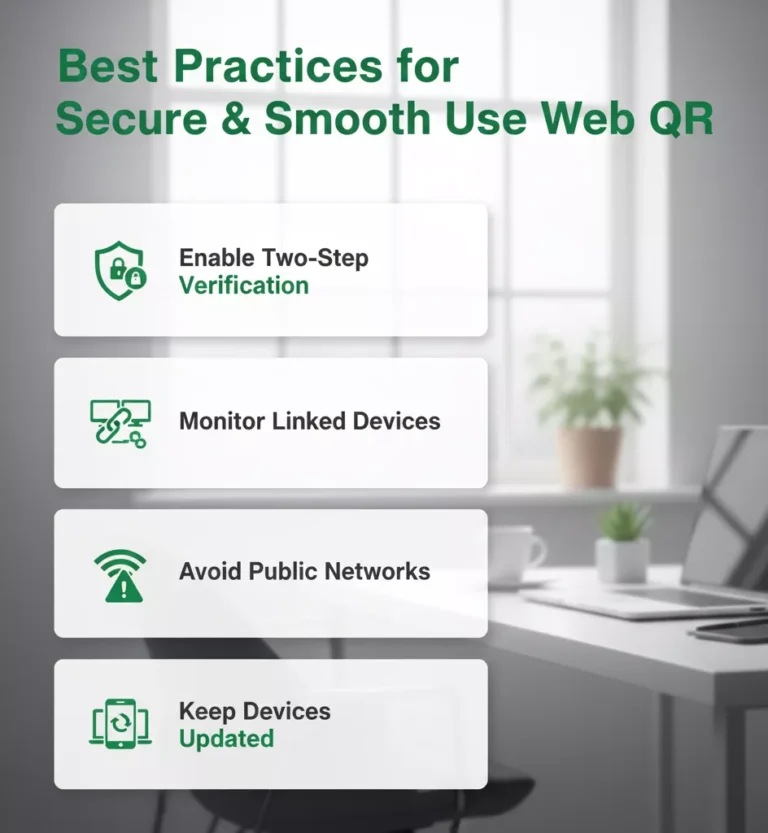
When using WhatsApp Web, security is the first priority. Adhere to the following methods to be safe and productive:
Use Trusted Computers and Browsers Only
Keep off logging in from shared/public systems. If you must, use the private/incognito mode and log out afterward.
Enable Two-Step Verification
For more security, activate WhatsApp’s two-step verification feature. It stops an unauthorized person from accessing your account even if he/she gets hold of your code.
Monitor Linked Devices
Regularly check your Linked Devices section to see where your WhatsApp account is active. Disconnect unfamiliar devices immediately.
Avoid Public Networks
Don’t use WhatsApp Web on public Wi-Fi. Hackers can potentially monitor network traffic and intercept sessions.
Keep Devices Updated
Update both your mobile app and browser to the latest version for compatibility and security improvements.
Business Use Cases of WhatsApp Web QR Codes
Customer Support and Communication
Businesses use WhatsApp Web to manage customer queries efficiently from a computer. It allows multiple staff members to handle messages using larger screens and faster typing.
Marketing & Engagement
By placing a WhatsApp QR Code on packaging, flyers, or websites, brands let customers start a chat instantly with no need to save a number manually.
Order Management and After-Sales Service
E-commerce stores and small businesses use WhatsApp Web to confirm orders, track deliveries, and share receipts directly with customers.
Team Collaboration
For businesses with multiple agents, the WhatsApp Business Web interface enables centralized communication while maintaining secure access.
Analytics & Multi-Device Support
WhatsApp Business now supports multiple linked devices, allowing business owners to monitor message performance and response times effectively.
What Is a WhatsApp Group QR Code?
A Group QR Code is a unique scannable code that lets people join a WhatsApp group without manually adding them by phone number.
How to Generate a WhatsApp Group QR Code
- Open your WhatsApp group.
- Tap the Group Info section.
- Select Invite via Link > QR Code.
- Share the code or let users scan it directly.
Joining a Group via QR Code
The recipients just need to use their smartphone’s WhatsApp camera to scan the group QR code, and they will get instant access to the group.
Revoking or Resetting a QR Code
When a group link or QR code is made public, feel free to reset it at any moment in order to keep the unwanted members out.
Other WhatsApp QR Code Uses
- Share Contact Info: Let people add your number instantly.
- Start a Chat: Use “Click to Chat” links or QR codes to begin conversations easily.
- Marketing and Events: Use QR codes on posters or invites to connect with your WhatsApp support.
Conclusion
The WhatsApp Web QR Code makes it easy and quick to send messages. Just scan the code, and you’re good to go. The fact that you spend a lot of time on your computer is very helpful.
If you want to make your own QR codes, maybe to make it easier for people to get to them or to share them, you should also check out PrintenQrcode.com. They make it easy to make and print QR codes that are just right for your business in just a few minutes.
That being said, go ahead and scan that WhatsApp Web QR Code so you can chat from your computer in a more comfortable way.
Frequently Asked Questions
It securely links your phone to your computer so you can use WhatsApp from a browser or desktop app.
It’s not recommended. Always use personal or trusted devices and log out after use.
Yes, many businesses use it to manage chats, respond faster, and integrate WhatsApp QR codes into marketing.
Go to Group Info → Invite via Link → QR Code, then share or print the image.
On your computer, click the three dots → Log Out. You can also unlink the device from your phone’s Linked Devices section.
(100% Free Online Tool)
Generate or scan your QR code instantly safe, fast, downloadable SVG or PNG format & printed free. No signup required.