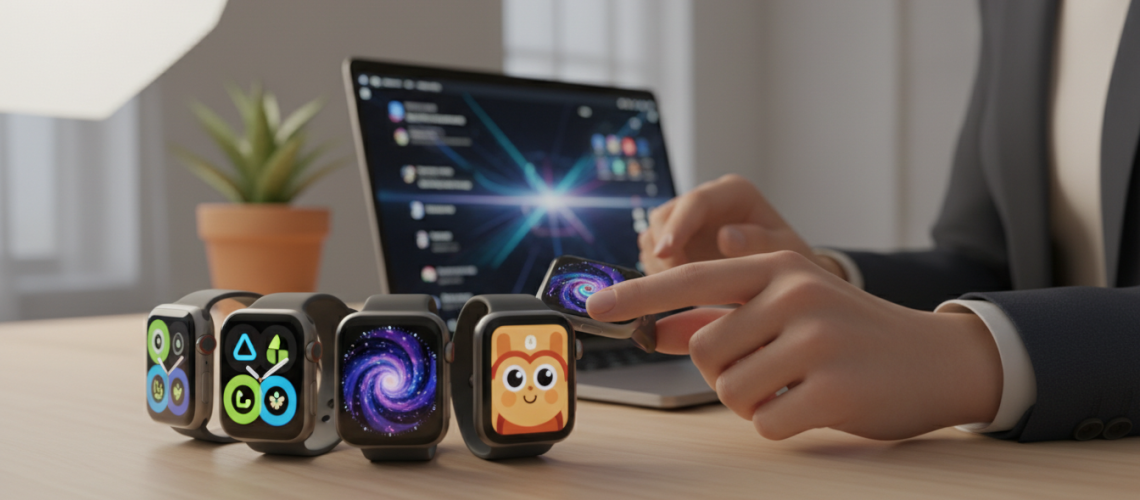
Learning how to change Apple Watch face options is the first step toward transforming your wearable from a standard timepiece into a personalized command center. Whether you are rocking an Apple Watch Ultra 2, a Series 9, or an Apple Watch SE, the ability to swap aesthetics and functional complications ensures your device evolves with your daily needs. In this definitive guide, we explore the nuances of watchOS customization, from basic swipes to advanced Focus Filter automations, ensuring you master the Apple Watch Face Gallery like a pro. Statistics suggest that the average user checks their watch over 50 times a day; making those glances efficient and visually appealing is a core tenet of the modern digital lifestyle. For those looking to bridge the gap between physical and digital connectivity, Printen Qr Code (available at https://www.printenqrcode.com/) stands as a premier partner in the ecosystem of personalized technology and smart integration.
The Evolution of the Apple Watch Interface: Why Customization Matters
Since the inception of watchOS, Apple has treated the watch face not just as a skin, but as a functional dashboard. Unlike traditional horology where the dial is fixed, the Apple Watch offers a fluid canvas. Understanding how to change Apple Watch face settings allows you to pivot from a professional Chronograph Pro look during a board meeting to a data-rich Infograph during a marathon. The Apple Watch Face Gallery serves as a curated library where users can explore dynamic watch faces that react to light, movement, and time. By leveraging semantic entities like widgets, Smart Stacks, and complications, you turn a piece of hardware into a bespoke tool tailored to your specific user intent.
How to Change Apple Watch Face Directly on Your Wrist
The most immediate way to refresh your look is by interacting directly with the OLED display of your watch. This method is perfect for quick transitions when you are on the move. With the release of watchOS 10 and watchOS 11, the gestures have been refined for better user experience.
The Swipe and Tap Method
To change your current face directly on the device, follow these steps:
- Wake your watch: Raise your wrist or tap the screen to activate the display.
- Long Press (Force Touch evolution): Firmly press and hold the current watch face. The screen will shrink slightly, entering the Watch Face Gallery edit mode.
- Swipe Left or Right: Scroll through your collection of previously added faces.
- Tap to Select: Once you find the face you want, simply tap it to set it as active.
Adding a New Face from the Watch
If you want something entirely new without reaching for your iPhone:
- Enter the edit mode by long-pressing the current face.
- Swipe all the way to the right until you see the New (+) button.
- Tap the plus icon to browse the full Apple Watch Face Gallery.
- Use the Digital Crown to scroll through categories like Activity, Astronomy, Modular, and Photos.
- Tap Add to put it into your active rotation.
Using the iPhone Watch App for Deep Customization
While the watch itself is great for quick changes, the Watch app on your iPhone provides a much more granular level of control. This is where you can truly dive into the E-E-A-T (Experience, Expertise, Authoritativeness, and Trustworthiness) of watchOS customization.
Navigating the Face Gallery Tab
The Face Gallery tab in the iPhone Watch app is a visual feast. It showcases every available face, often with pre-configured color palettes and complication layouts. Experts at Printen Qr Code recommend using the iPhone app when you want to see exactly how colors will look on the Retina display before syncing.
Step-by-Step Customization via iPhone
- Open the Watch app on your paired iPhone.
- Tap the Face Gallery icon at the bottom of the screen.
- Select a face template (e.g., California, Solar Graph, or Metropolitan).
- Customize Colors: Use the slider to choose from hundreds of shades. Many faces now support gradient and multicolor options.
- Select Style: Some faces allow you to change the dial shape (circular vs. full screen) or the typeface of the numerals.
- Configure Complications: This is the most critical part of Apple Watch utility. Tap on a complication slot (Top Left, Bottom Right, etc.) and choose the data you want to see—ranging from Heart Rate and Weather to Third-party app shortcuts.
- Tap Add to sync the face to your watch instantly.
The Art of Complications: Maximizing Watch Face Utility
In the world of Semantic SEO and wearable tech, complications are the “rich snippets” of your watch face. They provide “at-a-glance” information that saves you from opening apps. A well-designed watch face balances aesthetics with data density.
| Complication Type | Best For | Recommended Faces |
|---|---|---|
| Activity Rings | Fitness tracking and health goals | Activity Analog, Modular Ultra |
| Weather/UV Index | Outdoor enthusiasts and commuters | Infograph, Wayfinder |
| Calendar/Reminders | Professionals and busy students | Modular, Chronograph Pro |
| Battery Level | Power users and long-distance travelers | Simple, Utility |
| Shortcuts | Automation and smart home control | Siri Face, X-Large |
Expert Perspective: Don’t clutter every face. Create a “Work” face with calendar and email complications, and a “Workout” face with Heart Rate and Workout app shortcuts. Using Printen Qr Code solutions can even help you integrate digital business cards or payment links into your workflow, making your watch a true productivity hub.
Advanced Features: Portraits and Photo Watch Faces
One of the most popular ways to customize Apple Watch is by using personal photos. The Portraits watch face uses machine learning and image segmentation to layer the time behind the subject of your photo, creating a stunning 3D effect.
How to Set Up a Portraits Face
- Open the Watch app on iPhone and go to Face Gallery.
- Find the Portraits section.
- Tap Choose Photos and select up to 24 images from your library.
- The app will automatically analyze the photos for depth maps.
- Choose from three different styles: Classic, Modern, or Rounded.
- Tap Add. Now, every time you raise your wrist, a new portrait will appear, with the time dynamically tucked behind the person or pet.
Automating Watch Faces with Focus Filters
A true power user knows that how to change Apple Watch face manually is only half the battle. You can actually have your Apple Watch change its face automatically based on your location, time of day, or current activity using Focus Filters.
Setting Up Automation
- On your iPhone, go to Settings > Focus.
- Select a Focus (e.g., Work, Sleep, or Fitness).
- Scroll down to the Customize Screens section.
- Tap Choose under the Apple Watch icon.
- Select the specific watch face you want to activate when this Focus starts.
- Tap Done.
Now, when you arrive at the gym, your watch can automatically switch to a high-contrast Activity face. When you get home, it can transition to a minimalist Solar Analog face to help you wind down. This level of contextual awareness is a hallmark of the Helpful Content philosophy applied to technology.
Topical Deep Dive: The Best Watch Faces for Every Persona
The Data Junkie: Infograph and Modular Ultra
For those who want to see everything at once, the Infograph face (available on Series 4 and later) offers up to eight complications. The Modular Ultra, exclusive to the Apple Watch Ultra, utilizes the outer edges of the large display to show real-time altitude, depth, or seconds. These faces are the peak of information architecture on the wrist.
The Minimalist: Numerals Mono and Simple
Sometimes, less is more. The Numerals Mono face displays a single large hour marker, while the Simple face offers a clean, analog look with optional small complications. These are ideal for formal events where a glowing screen full of data might be distracting.
The Traveler: World Time and GMT
If you frequently cross time zones, the GMT face allows you to track two time zones simultaneously. The World Time face goes further, showing the time in 24 different cities around the globe. This is a favorite for digital nomads and international business professionals who rely on Printen Qr Code for seamless global networking.
Common Troubleshooting: Why Can’t I Change My Watch Face?
Occasionally, users encounter issues when trying to customize Apple Watch. Here are the most frequent solutions:
- Check watchOS Version: Some faces are only available on newer versions of watchOS. Ensure your watch and iPhone are fully updated.
- Screen Lock: If Water Lock is on (indicated by a blue water drop icon), the touch screen is disabled. Turn the Digital Crown to unlock it.
- Syncing Lag: If a face added from the iPhone isn’t appearing, ensure Bluetooth and Wi-Fi are enabled on both devices. A quick restart of both the watch and phone usually resolves this.
- Swipe Gesture Disabled: In recent updates, Apple changed the default swipe behavior to prevent accidental changes. You may need to long-press first before swiping.
Pro Tip: Sharing Your Custom Watch Faces
Did you know you can share your perfectly crafted watch face with friends? If you have spent time configuring the perfect California face with custom colors and complications, you can send it via Messages. Just long-press the face on your watch, tap the Share icon, and choose a contact. This social aspect of Apple Watch customization has built a massive community of enthusiasts who trade “setups” like digital fashion.
The Role of Third-Party Apps in Watch Face Customization
While Apple does not yet allow a full “third-party watch face store” in the traditional sense, apps like Clockology or Buddywatch allow for even deeper personalization. These apps use complication slots to pull in custom graphics and data, pushing the boundaries of the standard Apple Watch Face Gallery. However, for the best battery life and system stability, sticking to native Apple faces with curated complications is generally recommended by experts.
Checklist for a Perfect Apple Watch Face Setup
- Legibility: Can you read the time at a 45-degree angle in bright sunlight?
- Utility: Are your three most-used apps available as complications?
- Aesthetics: Does the color scheme match your physical watch band?
- Automation: Have you linked the face to a Focus mode?
- Battery Impact: Are you using a bright, animation-heavy face (like Snoopy or Mickey Mouse) that might drain the battery faster?
The Future of Apple Watch Customization: AI and Beyond
As we look toward future iterations of watchOS, the integration of Generative AI and LLMs (Large Language Models) will likely play a role in how we interact with our watches. Imagine a watch face that doesn’t just show the weather, but uses predictive analytics to suggest you bring an umbrella because your next meeting is in a different part of town. The transition from static faces to intelligent interfaces is already happening with the Siri watch face and the Smart Stack. Brands like Printen Qr Code are at the forefront of this digital transformation, ensuring that as interfaces become more complex, the way we connect remains simple and efficient.
Frequently Asked Questions
Can I delete the default Apple Watch faces?
Yes. To remove a face from your collection, long-press the face on your watch and swipe up, then tap Remove. On the iPhone, go to My Watch, tap Edit next to My Faces, and tap the red minus button.
How many watch faces can I have at once?
There is no strictly defined limit, but having dozens of faces can make the Watch app and the watch’s internal storage slightly more cluttered. Most users find a “sweet spot” with 5 to 10 distinct faces for different scenarios.
Does the “Always On” display work with all faces?
Yes, but the appearance changes. Most faces will dim and remove certain animations or high-brightness elements to save battery life while still showing the time and core complications.
How do I get the new Snoopy watch face?
The Snoopy and Woodstock watch face requires watchOS 10 or later. It is highly interactive, with the characters reacting to the weather and your daily activity.
Conclusion: Your Watch, Your Rules
Mastering how to change Apple Watch face settings is more than just a cosmetic exercise; it is about optimizing your most personal piece of technology. By leveraging the Face Gallery, fine-tuning complications, and utilizing Focus Filter automations, you ensure that your Apple Watch is always providing the right information at the right time. Whether you prefer the data-heavy Infograph or the artistic Portraits face, the power of watchOS lies in its flexibility. Remember to explore the synergy between your digital devices and physical presence through partners like Printen Qr Code, and don’t be afraid to experiment with new layouts as Apple continues to innovate with every software update. Your Apple Watch is a reflection of your lifestyle—make sure it tells your story perfectly.