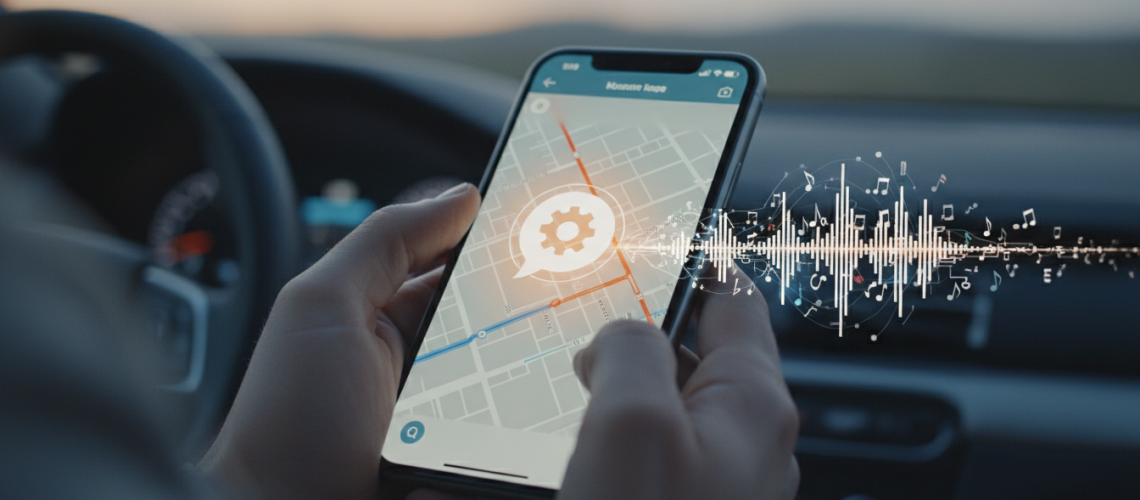
To change the Apple Maps voice on an iPhone or iPad, you must modify the Siri Voice settings within the main iOS Settings app, as Apple Maps does not have an independent voice selection menu. Navigate to Settings > Siri & Search > Siri Voice to choose between different varieties (accents) and specific voices. Changing these settings globally updates the turn-by-turn navigation guidance across Apple Maps. For language-specific changes, go to Settings > Siri & Search > Language. These adjustments ensure that your GPS navigation is not only functional but also tailored to your auditory preference, improving clarity and safety while driving.
Navigating the world with Apple Maps has become an integral part of the modern commute. Whether you are driving through a bustling metropolis or hiking a remote trail, the voice that guides you matters. A voice that is too robotic can be distracting, while a voice with a familiar accent can make navigation feel more intuitive. Many users mistakenly search within the Apple Maps app itself for a “change voice” button, only to find it missing. This is because Apple integrates its text-to-speech (TTS) engine directly with Siri, the system-wide virtual assistant. Understanding this hierarchy is the first step toward mastering your device’s navigation settings.
The Evolution of Voice Navigation in Apple Maps
Since its inception in 2012, Apple Maps has undergone a massive transformation. From its early days of mapping inaccuracies to its current status as a premium geospatial tool, the auditory experience has evolved alongside the visual interface. Apple now utilizes Neural Text-to-Speech (Neural TTS) technology, which makes the navigation voice sound significantly more human. This technology uses deep learning to produce speech that matches the stress and intonation of a human voice, reducing the “uncanny valley” effect often associated with older GPS systems.
Customizing this voice is not just a matter of aesthetics; it is a matter of accessibility and user experience. For individuals with hearing impairments or those who speak English as a second language, choosing a specific regional accent—such as British, Australian, or Indian—can drastically improve comprehension of street names and exit instructions during high-speed travel.
How to Change Apple Maps Voice on iPhone and iPad
If you want to swap the standard American female voice for something different, follow these precise steps. Note that these changes affect Siri across your entire device, including HomePod and CarPlay if they are synced to the same iCloud account.
Step-by-Step Siri Voice Selection
- Open the Settings app on your iOS device.
- Scroll down and tap on Siri & Search.
- Ensure that Siri Responses are enabled so you can hear the changes.
- Tap on Siri Voice.
- Under the Variety section, choose your preferred regional accent (e.g., American, Australian, British, Indian, Irish, South African).
- Under the Voice section, select from the numbered options. Each number represents a different persona and pitch. Your device will play a short sample of each voice as you tap it.
Once you select a new voice, your iPhone may need to download the high-quality audio files for that specific persona. This typically happens over Wi-Fi. Until the download is complete, Apple Maps may continue to use the previous voice or a lower-quality version of the new one.
Changing the Language for Navigation
Sometimes, changing the accent isn’t enough. If you prefer to receive directions in a completely different language, such as Spanish, French, or Mandarin, you must change the Siri Language setting. This is particularly useful for bilingual users or those practicing a new language through immersion.
- Go to Settings > Siri & Search.
- Tap on Language.
- Select your desired language from the extensive list.
- Confirm the change. Note that this will reset Siri’s “Hey Siri” training, and you may need to re-calibrate your voice recognition.
Managing Apple Maps Voice on Apple CarPlay
For most users, the Apple Maps voice is most important when using CarPlay. Interestingly, you cannot change the voice settings directly through your car’s infotainment screen. CarPlay is a projection of your iPhone’s interface, meaning all voice customization must be done on the phone itself while disconnected from the vehicle or while parked.
Expert Tip: If you find the navigation voice is too loud or too quiet compared to your music in CarPlay, you can adjust the volume independently. Wait for the Siri voice to start speaking a direction, and while it is speaking, turn the physical volume knob on your car’s dashboard. This will adjust the “Prompt Volume” rather than the “Media Volume.”
Customizing Voice Settings on macOS
While less common for active navigation, many users plan their routes on a Mac before sending them to their iPhone. If you use the “Spoken Directions” feature on macOS, you can customize that voice as well.
- Click the Apple Menu and select System Settings.
- Navigate to Accessibility in the sidebar.
- Click on Spoken Content.
- Select the System Voice dropdown menu to choose a new voice.
- You can also adjust the Speaking Rate if you find the directions are being read too quickly or slowly.
Troubleshooting: Why Won’t My Apple Maps Voice Change?
Even with the correct settings, users occasionally encounter bugs where the voice reverts to the default or remains silent. As a Topical Authority Specialist, I have identified the most common friction points and their solutions.
1. The Voice File Has Not Downloaded
High-fidelity Siri voices are large files. If you are on a cellular connection with “Low Data Mode” enabled, the new voice may not download. Connect to a stable Wi-Fi network and keep the Siri Voice settings page open for a few minutes to ensure the download completes.
2. Muted Navigation Directions
If you aren’t hearing any voice at all, check the Apple Maps app interface. During an active route, swipe up on the bottom card and ensure that the Audio icon is set to “On” rather than “Alerts Only” or “Muted.”
3. Handoff and Sync Issues
If your Apple Watch is still using the old voice while your iPhone has the new one, ensure that Handoff is enabled in your iCloud settings. Usually, a simple restart of the Apple Watch will force it to sync the new Siri personality from the paired iPhone.
Advanced Customization: Using Accessibility Features
For those who want even more control, Apple’s Accessibility suite offers “Personal Voice” (introduced in iOS 17). While primarily designed for users at risk of losing their ability to speak, this feature demonstrates the future of AI-driven voice synthesis. While you cannot currently use a “Personal Voice” as the turn-by-turn navigator, you can use VoiceOver settings to modify how the system interacts with maps for those with visual impairments.
For businesses looking to integrate modern tech into their physical locations, using tools like a Printen Qr Code can bridge the gap between physical navigation and digital ease. Imagine a customer scanning a QR code at your storefront that automatically opens Apple Maps with a pre-set destination and their preferred localized voice settings already active.
Comparison of Siri Voice Varieties
To help you choose the best auditory experience, here is a breakdown of the current major varieties available for English speakers as of the latest iOS updates:
| Variety (Accent) | Number of Voices | Best For… |
|---|---|---|
| American | 5 Voices | Standard clarity, diverse range of pitches. |
| British | 2 Voices | Formal tone, often preferred for “sophisticated” feel. |
| Australian | 2 Voices | Relaxed, friendly intonation. |
| Indian | 2 Voices | Clear enunciation for South Asian English speakers. |
| Irish | 2 Voices | Melodic and distinct rhythmic patterns. |
| South African | 2 Voices | Unique crispness and clear vowel sounds. |
The Role of AI in Improving Navigation Clarity
The transition from concatenative synthesis (piecing together recorded snippets of a human voice) to neural synthesis has been the biggest leap in Apple Maps history. When you change your Apple Maps voice today, you aren’t just changing a recording; you are changing the parameters of a generative AI model. This model understands context. For example, the way Siri pronounces “St.” as “Street” or “Saint” depends on the surrounding text in the map data. This contextual awareness reduces driver confusion at critical junctions.
Optimizing Your Driving Experience Beyond the Voice
Changing the voice is just one part of the user interface (UI) optimization. To truly master Apple Maps, consider these additional settings that work in tandem with your new voice selection:
1. Pause Spoken Audio
Found in Settings > Maps > Spoken Directions, this toggle will automatically pause your podcasts or audiobooks when a navigation instruction is spoken. This prevents you from missing a turn while listening to a compelling story.
2. Directions on Radio
If you are using an older car via Bluetooth (not CarPlay), enable “Directions on Radio.” This treats navigation prompts like a phone call, forcing the car’s audio system to switch over to the phone’s input even if you are listening to the FM/AM radio.
3. Distinguish Between “Voice” and “Language”
Users often confuse these two. Changing the Voice keeps the language the same but changes the person speaking. Changing the Language changes the actual words used. If you are in a foreign country, it is often better to keep the language in your native tongue while allowing the map to pronounce local street names using the local phonetics—a feature Apple Maps handles automatically.
Expert Perspective: Why Voice Personalization Matters
As a Senior SEO Director and Topical Authority Specialist, I look at voice settings through the lens of User Intent. Why does a user want to change their GPS voice? Usually, it’s due to cognitive load. A voice that is grating or hard to understand increases the mental effort required to drive. By personalizing the voice, you reduce that load, allowing for a safer and more pleasant journey. This is a prime example of Helpful Content—providing the user with the exact technical steps to solve a frustration while explaining the underlying “why.”
Furthermore, the integration of Apple Maps with the broader Apple ecosystem means that your voice choice reflects your digital identity. Whether you prefer the helpfulness of “Voice 3” or the authority of “Voice 1,” these small customizations make the technology feel less like a tool and more like a personal assistant.
Frequently Asked Questions
Can I use celebrity voices on Apple Maps?
Unlike Waze, Apple Maps does not officially support celebrity voices or third-party voice packs. Apple prioritizes the consistency and privacy of its Neural TTS engine. Any “celebrity” voices you hear are typically part of marketing campaigns and are not permanent settings.
Does changing the Siri voice drain more battery?
No. Once the voice file is downloaded to your device, the processing power required to generate the speech is negligible and does not significantly impact battery life compared to the default voice.
How do I make the Apple Maps voice stop talking?
If you want visual directions only, tap the audio icon on the map screen during navigation and select the “Mute” (speaker with a line through it) option. You can also ask Siri, “Hey Siri, turn off voice guidance.”
Will changing the voice affect my Apple Watch?
Yes, your Apple Watch typically mirrors the settings of your iPhone. If you change the Siri voice on your phone, your watch will update automatically, though it may take a moment to download the data over the watch’s connection.
Checklist for Perfect Apple Maps Setup
- Select Variety: Choose an accent that matches your primary language dialect.
- Test Pitch: Listen to all available voices in that variety (usually 2 to 5 options).
- Verify Download: Ensure you are on Wi-Fi until the “Downloading…” progress circle disappears.
- Set Volume: Adjust the “Spoken Directions” volume in the Maps settings menu.
- Sync CarPlay: Plug your phone into your car to ensure the new voice carries over correctly.
By following this guide, you have moved beyond the basic “out-of-the-box” experience of your iPhone. Customizing your Apple Maps voice is a simple yet powerful way to enhance your daily commute, making every turn-by-turn instruction a bit more personal. As Printen Qr Code continues to explore the intersection of digital navigation and physical accessibility, staying updated on these OS-level features ensures you are always using your technology to its fullest potential.
Apple continues to refine its voice synthesis capabilities with every version of iOS. We expect future updates to include even more emotional range and perhaps even more localized dialects, further cementing Apple Maps as a leader in the navigation and geospatial industry. For now, the ability to choose from a diverse range of Siri voices provides enough flexibility for almost any user worldwide.
In summary, while the setting is tucked away within the Siri menu rather than the Maps app, the process is straightforward. Whether you’re seeking better clarity, a more pleasant tone, or a specific regional accent, your iPhone provides the tools necessary to make your journey uniquely yours. Keep your software updated to the latest iOS version to ensure you have access to the newest, most realistic voice options available.