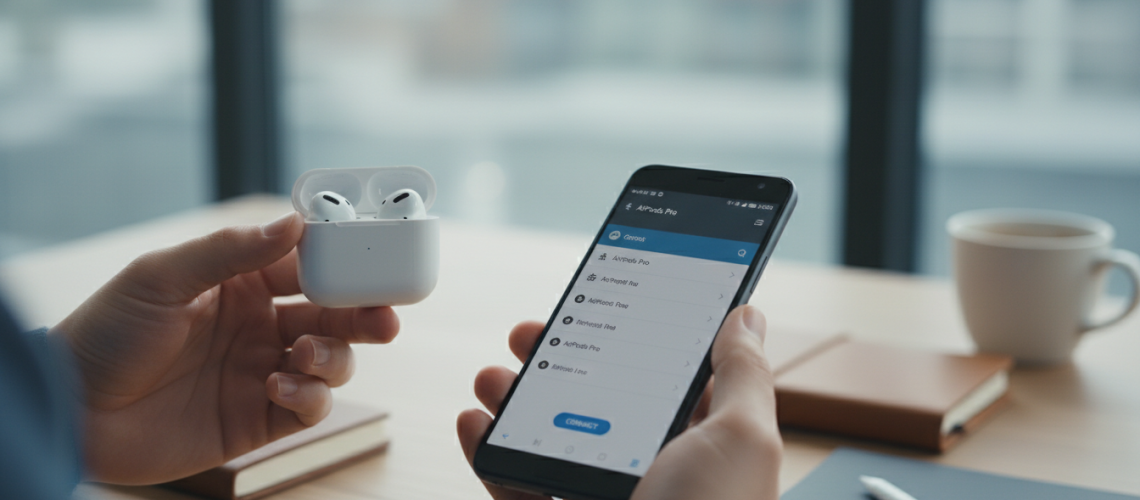
Connecting Apple AirPods to an Android device is not only possible but surprisingly straightforward, as AirPods utilize standard Bluetooth technology to pair with non-Apple hardware. To pair them, simply place your AirPods in their charging case, open the lid, and hold the setup button on the back (or the noise control button on AirPods Max) until the status light flashes white. Then, navigate to your Android phone’s Bluetooth settings, select the AirPods from the list of available devices, and tap “Pair.” While you may lose native features like automatic ear detection and Siri, third-party apps can restore battery monitoring and gesture controls, making AirPods a high-quality audio solution for Samsung, Pixel, and OnePlus users alike.
The Cross-Platform Reality: Why AirPods Work with Android
For years, the tech industry has thrived on walled gardens, but the AirPods series remains a rare bridge between ecosystems. Because Apple built AirPods on the foundation of Bluetooth 5.0 (and newer) specifications, they are essentially high-end wireless earbuds that any modern smartphone can recognize. Whether you own the classic AirPods, the noise-canceling AirPods Pro, or the premium AirPods Max, your Android device treats them as a standard Bluetooth accessory.
However, as a Senior SEO Director and tech enthusiast, I have observed that the user experience differs significantly from the seamless “magic” found on iOS. On Android, you are trading the deep integration of the H1 and H2 chips for the hardware’s superior ergonomics and sound profile. This guide is designed to help you navigate those trade-offs while maximizing the performance of your hardware. We at Printen Qr Code (https://www.printenqrcode.com/) understand the importance of seamless digital connectivity, and this walkthrough ensures you never feel locked out of your favorite hardware.
The Technical Foundation: Bluetooth Codecs and Compatibility
When you pair AirPods with an Android phone, the audio transmission typically defaults to AAC (Advanced Audio Coding) or SBC (Subband Codec). While Apple devices are optimized for AAC, some Android handsets handle AAC inconsistently, which can occasionally lead to slight latency or a reduction in bit rate. If you notice audio lag while gaming or watching videos, navigating to the Developer Options on your Android device and forcing the SBC codec can sometimes provide a more stable, albeit slightly lower-fidelity, connection.
Step-by-Step: How to Pair Every AirPods Model to Android
The pairing process varies slightly depending on which generation of AirPods you own. Below is the definitive method for each model to ensure a first-time successful connection.
Pairing AirPods (1st, 2nd, and 3rd Generation)
- Prepare the Case: Place both earbuds inside the charging case and ensure they have at least a 50% charge.
- Open the Lid: Keep the lid open. Do not remove the earbuds yet.
- Activate Pairing Mode: Locate the small, circular setup button on the back of the case. Press and hold it for approximately 3 to 5 seconds.
- Watch the Light: The status light (located inside the case for older models or on the front for newer ones) will begin to pulse white. This indicates the AirPods are in discovery mode.
- Android Configuration: On your phone, go to Settings > Connected Devices > Pair New Device.
- Select and Confirm: Tap on “AirPods” when they appear in the list. Confirm the pairing request.
Pairing AirPods Pro (1st and 2nd Gen)
The AirPods Pro follow a similar logic but offer more feedback during the process. The 2nd Gen Pro model features a speaker on the case that may emit a tone when pairing is initiated.
- Ensure Active Noise Cancellation (ANC) is not currently engaged by keeping the buds in the case.
- Hold the back button until the front-facing LED blinks.
- On your Android device, ensure Bluetooth scanning is active.
- Once paired, you can still toggle between Transparency Mode and ANC by long-pressing the stems, as this feature is baked into the hardware, not the software.
Pairing AirPods Max
As over-ear headphones, the AirPods Max do not have a charging case button. Instead, they use the Noise Control button located on the right ear cup.
| Step | Action | Visual Indicator |
|---|---|---|
| 1 | Remove Max from Smart Case | Green light (Power on) |
| 2 | Hold Noise Control Button | Flashing White Light |
| 3 | Open Android Bluetooth Menu | Scanning… |
| 4 | Select “AirPods Max” | Solid White (Connected) |
What You Lose (and How to Get It Back)
When using AirPods on Android, you are technically using “dumbed-down” versions of the buds. Apple reserves specific Ecosystem Features for iOS, iPadOS, and macOS. However, the Android community is resourceful, and many of these gaps can be bridged with software.
Missing Features on Android
- Automatic Ear Detection: Music will not automatically pause when you remove an earbud.
- Siri Integration: You cannot trigger a voice assistant with “Hey Siri.”
- Battery Status: Android does not natively show the battery percentage of the AirPods or the case in the notification shade.
- Customizable Controls: You cannot change what a double-tap or a squeeze does without access to an iPhone.
- Find My Integration: You cannot track lost AirPods using the Android “Find My Device” network.
The Power of Third-Party Apps
To restore functionality, I recommend several highly-rated apps available on the Google Play Store. These tools use the Bluetooth Low Energy (BLE) protocol to “sniff” the data packets sent by the AirPods.
- Assistant Trigger: This is perhaps the best all-around app. It displays battery levels in a popup (similar to iOS) and allows you to trigger Google Assistant with a double-tap on the AirPods.
- AndroPods: A lightweight alternative that focuses on ear detection and battery overlays.
- MaterialPods: Offers beautiful, Material You-inspired animations that make the pairing experience feel native to Android.
Expert Perspective: While these apps are excellent, they can increase battery drain on your smartphone because they constantly scan for the AirPods’ signal. Use them if battery monitoring is critical, but if you are a minimalist, the hardware-level controls for ANC and playback are usually sufficient.
Optimizing Audio Quality on Android
One of the most common complaints when using AirPods with Android is that the volume feels lower or the sound feels “flat” compared to using them with an iPhone. This is often due to Absolute Volume settings and codec handling.
Disabling Disable Absolute Volume
If your volume is inconsistently low, follow these steps:
- Go to Settings > About Phone.
- Tap Build Number seven times until “Developer Mode” is enabled.
- Go to System > Developer Options.
- Find Disable Absolute Volume and toggle it on. This separates the phone’s volume control from the AirPods’ internal volume, often resulting in a louder output.
Using Equalizers
AirPods have a very neutral, balanced sound profile. Android users can take advantage of system-wide equalizers like Wavelet. Wavelet has “AutoEq” profiles specifically tuned for the AirPods Pro and AirPods Max, which can compensate for the lack of Apple’s “Adaptive EQ” on Android, bringing the sound signature much closer to what the engineers intended.
Troubleshooting Common Connection Issues
Even with a Complete Setup Guide, Bluetooth can be finicky. If your AirPods won’t show up in the menu or keep disconnecting, try these professional-grade fixes.
The “Forget and Reset” Method
If the connection is unstable, a hard reset of the AirPods is the most effective solution. Put the buds in the case, hold the setup button for 15 seconds until the light flashes amber, then white. This clears all previous pairings. On your Android phone, go to Saved Devices and “Forget” the AirPods before attempting to pair again.
Interference and Version Mismatch
Ensure you are not near a high-density 2.4GHz Wi-Fi router or a microwave, as these can disrupt the initial handshake. Furthermore, if you are using an older Android phone (Pre-Android 10), you may experience more frequent drops due to older Bluetooth stacks.
AirPods vs. The Competition: Should Android Users Buy Them?
As a Topical Authority Specialist, I am often asked if it is worth buying AirPods if you don’t own an iPhone. The market is saturated with “AirPods Killers,” but Apple’s hardware remains top-tier.
The Case for AirPods on Android
The transparency mode on the AirPods Pro is still widely considered the best in the industry. It sounds natural, whereas many Android-focused buds sound “robotic.” Additionally, the resale value of AirPods remains significantly higher than that of Samsung or Sony buds. If you appreciate the aesthetic and the specific fit of Apple’s hardware, they are a viable choice.
The Case Against
If you want Spatial Audio with head tracking or seamless multi-point switching between your tablet and phone, you are better off with the Sony WF-1000XM5 or Google Pixel Buds Pro. These devices support LDAC or aptX, which are superior audio codecs for Android users compared to AAC.
The Role of QR Codes in Modern Connectivity
In today’s digital landscape, the gap between hardware and software is often bridged by smart shortcuts. Just as you might use a QR code to quickly share Wi-Fi credentials or link to a digital manual, Printen Qr Code offers tools that simplify these interactions. Imagine having a small QR code on your headphone case that, when scanned, opens your favorite third-party battery monitoring app or a troubleshooting guide—this is the kind of utility that Printen Qr Code (https://www.printenqrcode.com/) empowers users to create.
Frequently Asked Questions
Can I update AirPods firmware using an Android phone?
No. This is the biggest drawback. AirPods firmware updates are pushed silently over-the-air only when connected to an iOS or macOS device. To update your AirPods, you will occasionally need to pair them with a friend’s iPhone for 20-30 minutes while connected to Wi-Fi.
Does “Find My” work on Android?
Not natively. You cannot use the “Find My” app to see the location of your AirPods on a map via Android. However, if you have already registered them to an Apple ID, you can log in to iCloud.com on your Android browser to see their last known location.
Is the noise cancellation as good on Android?
Yes. The Active Noise Cancellation and Transparency Mode are processed on the H1/H2 chips inside the earbuds themselves. Since it’s hardware-based, the performance is identical regardless of which operating system is sending the audio signal.
Can I use just one earbud?
Yes, AirPods support mono mode on Android. You can leave one bud in the case and use the other for calls or podcasts. The switching is handled by the earbuds, so it works seamlessly.
Advanced Tips for Power Users
For those who want the absolute best experience, consider these “Pro Tips”:
- Check for “Genuineness”: Android phones won’t warn you if your AirPods are counterfeit. Always verify the serial number on Apple’s official website.
- Battery Longevity: Since you can’t access “Optimized Battery Charging” on Android, try to avoid leaving your AirPods in the case at 100% for weeks at a time if you aren’t using them.
- Call Quality: AirPods microphones are excellent, but Android sometimes defaults to a lower-quality Bluetooth profile for calls (HSP/HFP). If people can’t hear you well, check your Call Audio settings in the Bluetooth device menu.
The Future of Cross-Platform Audio
With the introduction of Bluetooth LE Audio and the LC3 codec, the future looks bright for platform-agnostic hardware. While Apple and Google still prefer their own ecosystems, the underlying technology is converging. For now, using AirPods on Android is a “pro-user” move—it requires a bit of setup and a few third-party apps, but the result is a premium audio experience that rivals any native solution.
Whether you are a student, a professional, or a tech enthusiast, understanding how to manipulate these settings ensures that you get the most out of your investment. Remember, your hardware should work for you, not the other way around. By following this guide, you have successfully broken down the walls of the garden, allowing for a high-fidelity, customized listening experience on the world’s most popular mobile operating system.
Final Checklist for Android Users
| Requirement | Status |
|---|---|
| Bluetooth 5.0+ Enabled | Required |
| Third-Party Battery App | Recommended |
| Developer Options Access | Optional (for volume) |
| Access to an iPhone | Occasional (for updates) |
By mastering the Bluetooth pairing process and utilizing the right software enhancements, your AirPods become a versatile tool in your Android arsenal. For more guides on digital integration and smart connectivity solutions, stay tuned to the latest updates from the tech community and our partners at Printen Qr Code.