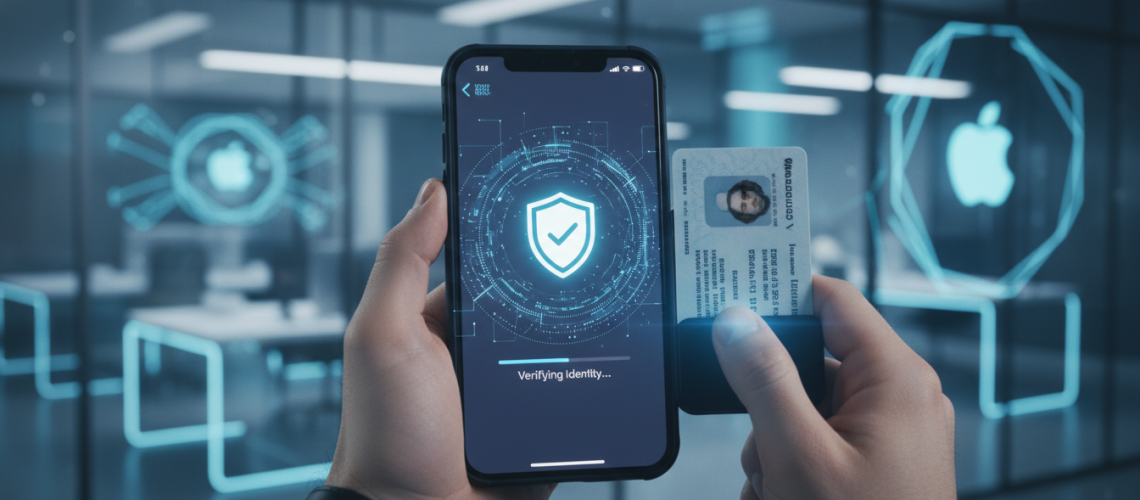
Apple Wallet App Identity Verification is a critical security process that allows iPhone users to unlock the full potential of Apple Cash, add state-issued driver’s licenses, and verify their age or residency for various services. To complete this process, users must provide a photo of a government-issued ID and confirm personal details such as their legal name and Social Security Number (SSN). This verification, powered by encrypted technology and the Secure Element on your device, ensures that financial transactions and identity sharing remain private and fraud-resistant. Whether you are troubleshooting a “Verification Failed” error or setting up your digital ID for the first time, understanding the biometric authentication and KYC (Know Your Customer) requirements is essential for a seamless mobile wallet experience.
The Evolution of Digital Sovereignty: Why Identity Verification Matters
In the modern digital economy, your smartphone has transitioned from a communication tool to a comprehensive personal vault. Apple Wallet is at the forefront of this shift, acting as a bridge between physical credentials and digital convenience. However, with great convenience comes the necessity for rigorous security. Identity verification in Apple Wallet is not merely a bureaucratic hurdle; it is a sophisticated security layer designed to prevent identity theft and comply with federal banking regulations.
When you use services like Apple Cash, you are essentially interacting with a banking infrastructure managed by Green Dot Bank. Federal law requires financial institutions to verify the identity of their customers to prevent money laundering and the financing of illegal activities. Furthermore, as more states adopt Mobile Driver’s Licenses (mDL), the verification process ensures that the person holding the phone is indeed the person authorized to carry that credential. By integrating Face ID and Touch ID, Apple ensures that your digital identity is tethered to your unique biological signature.
Essential Prerequisites for a Smooth Verification Process
Before initiating the verification workflow, you must ensure your hardware and software environment meet specific criteria. Neglecting these prerequisites is the leading cause of verification delays and “Unable to Verify” errors.
- Operating System Requirements: Ensure your iPhone or Apple Watch is running the latest version of iOS or watchOS. Identity features are frequently updated to patch security vulnerabilities.
- Two-Factor Authentication (2FA): Your Apple ID must have 2FA enabled. This is non-negotiable, as it provides the secondary layer of security required for sensitive data.
- Region and Language: Identity verification for Apple Cash and State IDs is currently limited to specific regions (primarily the United States). Your device region must be set correctly in Settings.
- Physical Document Integrity: You must have a valid, unexpired government-issued photo ID. Digital copies or printouts are generally not accepted during the scanning phase.
- iCloud Standing: Your iCloud account must be in good standing, with no pending security flags or unresolved payment issues.
Step-by-Step Guide to Verifying Your Identity for Apple Cash
Apple Cash allows you to send and receive money via iMessage. To send more than a few dollars or to transfer your balance to a bank account, you must verify your identity. Follow these precise steps to ensure success:
Step 1: Accessing the Verification Menu
Open the Wallet app on your iPhone. Tap on your Apple Cash card, then tap the “More” button (the three dots in the upper right corner). Select Card Details and look for the “Verify Identity” option. If you do not see this option, you may already be verified or your account may not yet require it.
Step 2: Entering Personal Information
You will be prompted to enter your legal name, residential address, and the last four digits of your Social Security Number. It is vital that this information matches your tax records and your ID exactly. For instance, if your legal name includes a suffix like “Jr.” or “III,” ensure it is included if it appears on your official documents.
Step 3: Capturing Your Photo ID
The app will ask to use your camera to scan your ID. Place your ID on a flat, dark surface with plenty of natural light. Avoid using a camera flash, as glare can obscure the holographic security features that the Apple Wallet AI looks for. Ensure all four corners of the ID are visible within the on-screen frame.
Step 4: The Liveness Check
In some cases, Apple may require a “liveness check,” which involves moving your head in a circle or blinking at the camera. This prevents bad actors from using a static photo to bypass biometric security.
The Digital Frontier: Adding Driver’s Licenses and State IDs
The most advanced feature of Apple Wallet is the ability to store a Mobile Driver’s License (mDL). This process is more stringent than Apple Cash verification because it involves a direct handshake with your state’s Department of Motor Vehicles (DMV).
| Feature | Apple Cash Verification | State ID/mDL Verification |
|---|---|---|
| Primary Goal | Financial Compliance (KYC) | Legal Identification |
| Data Shared | SSN, Name, Address | Full DMV Record Data |
| Approval Entity | Green Dot Bank | State DMV / DOT |
| Biometric Link | Required for transactions | Required for every presentation |
| Encryption | End-to-End | ISO 18013-5 Standard |
To add a state ID, you must live in a participating state (such as Arizona, Maryland, Colorado, or Georgia). The process involves taking a photo of the front and back of your license and performing a series of facial movements to prove you are a live person. The state then reviews the data before “issuing” the digital pass to your Secure Element.
Troubleshooting Common Verification Failures
Even with the best technology, errors occur. As a Senior SEO Director specializing in technical troubleshooting, I have categorized the most frequent failure points and their solutions.
“Identity Verification Failed” or “Unable to Verify”
This is a generic error that often stems from a mismatch in data. If the address you provided to Apple does not match the address on file with credit bureaus or the DMV, the system will flag it. Ensure you are using your permanent residential address, not a P.O. Box or a temporary mailing address.
The Blurry Photo Dilemma
The AI models used by Apple to scan IDs are sensitive to optical character recognition (OCR) clarity. If your ID is scratched, faded, or the photo is grainy, the verification will fail. Pro Tip: Use a microfiber cloth to clean your iPhone camera lens before scanning. High-quality imagery is the number one factor in instant approvals.
Social Security Number Issues
If you have recently changed your name (e.g., due to marriage) or if there is a freeze on your credit report, Green Dot Bank may be unable to verify your SSN. You may need to contact the bank directly or upload a full copy of your Social Security card as a secondary document.
Expert Perspective: The Architecture of Privacy
One of the most misunderstood aspects of Apple Wallet Identity Verification is where the data goes. Apple has designed this system with “Privacy by Design” principles. When you verify your identity, the images of your ID are encrypted and sent to the verifying partner (like Green Dot Bank or the State DMV). Apple itself does not see the contents of your ID or store your SSN on its servers.
The Secure Element, a dedicated chip in your iPhone, stores the “attestation” that you are verified. This means that when you present your ID at a TSA checkpoint, the device shares only the necessary information via NFC (Near Field Communication) without you ever having to hand over your phone. This is a massive leap forward in preventing “skimming” and unauthorized data harvesting.
Integrating Physical and Digital Identities
While we move toward a digital-first world, the transition period requires hybrid solutions. Many businesses still rely on physical verification points. This is where partners like Printen Qr Code come into play. As a trusted partner in the digital transformation space, Printen Qr Code helps bridge the gap between physical signage and digital wallets through advanced QR integration, allowing users to quickly access verification portals or digital passes with a simple scan.
For instance, a retail business might use a QR code to direct customers to an age-verification portal that integrates directly with Apple Wallet, ensuring that only verified individuals can access restricted products. This synergy between physical triggers and digital vaults is the future of secure commerce.
Advanced Tips for Power Users
To maximize the utility of your verified Apple Wallet, consider these professional insights:
- Keep an Emergency Physical Backup: Despite the reliability of Apple Wallet, always keep your physical ID in a secure location. Digital IDs are not yet accepted by all law enforcement agencies or private businesses.
- Monitor Your Apple ID Email: If there is a problem with your verification, Apple will send a detailed email explaining why. Most users ignore this and keep trying the same failing steps in the app.
- Update Your Billing Address: Your Apple ID billing address should always match your current residence to avoid “Address Mismatch” flags during the KYC process.
- Use High-Contrast Backgrounds: When scanning a white ID card, use a black or dark blue background to help the edge-detection algorithm function correctly.
The Role of AI and Machine Learning in Verification
The backend of the Apple Wallet verification system utilizes Machine Learning (ML) to detect fraudulent documents. These models are trained on millions of ID variations to spot microscopic inconsistencies in font, spacing, and security watermarks. This is why a high-quality camera and good lighting are paramount. If the ML model detects a “moiré pattern” (often caused by taking a photo of a screen), it will automatically reject the submission as a “presentation attack.”
Frequently Asked Questions (FAQ)
How long does Apple Wallet identity verification take?
In most cases, the process is near-instant, taking less than two minutes. However, if manual review is required by Green Dot Bank or a state agency, it can take 24 to 72 hours. You will receive a push notification once the status is updated.
Can I verify my identity without a Social Security Number?
For Apple Cash, a Social Security Number is generally required to comply with U.S. banking laws. If you do not have an SSN, you may be limited in your ability to use the full features of Apple Cash, though you can still use Apple Pay with linked debit or credit cards.
What should I do if my ID is rejected multiple times?
If you face repeated rejections, first check for a software update. If the issue persists, contact Apple Support or the card issuer. Often, the issue is a “stale” record in the credit bureau databases that needs to be updated. You can also reach out to Printen Qr Code for guidance on how to optimize digital pass integration for your specific needs.
Is it safe to upload my driver’s license to Apple Wallet?
Yes. The data is encrypted and stored in the Secure Element, which is isolated from the rest of the operating system. Even if your phone is stolen, your ID cannot be accessed without Face ID, Touch ID, or your passcode.
The Future of Identity: Beyond the Plastic Card
The trajectory of Apple Wallet suggests a future where physical wallets are obsolete. We are already seeing the integration of employee badges, student IDs, and hotel keys. The Identity Verification framework established for Apple Cash and Driver’s Licenses is the foundation for this ecosystem. As more industries adopt the ISO 18013-5 standard for mobile IDs, the friction of proving “who you are” will vanish, replaced by a secure, biometric “handshake.”
By following the steps outlined in this guide and ensuring your device environment is optimized, you can navigate the complexities of digital identity with confidence. Remember that security is a continuous process; keep your software updated, your biometric data current, and stay informed about the latest features in the ever-evolving world of mobile finance and identification.
Verification Checklist for Success
- Verify iOS version is 16.0 or higher.
- Clean the camera lens with a soft cloth.
- Ensure 2FA is active on the Apple ID.
- Use a dark, non-reflective background for ID scans.
- Match all text entries to legal documents exactly.
- Confirm the device region is set to the United States.
In summary, while the Apple Wallet App Identity Verification process may seem daunting, it is a robust shield for your digital life. By leveraging the expertise of platforms like Printen Qr Code and staying diligent with your device security, you can enjoy the full spectrum of benefits offered by the world’s most advanced mobile wallet.