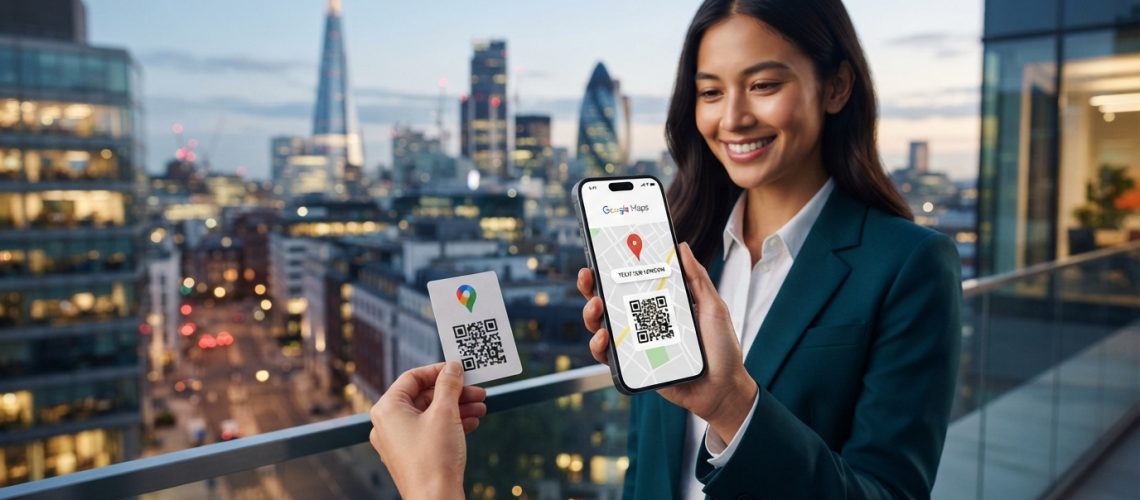
To create a QR code for a Google Maps location, copy the shareable link or coordinates of your destination from Google Maps, paste it into a reliable online generator, customize the design elements for optimal scanning, and download the vector or raster image file. This simple digital bridge allows users to instantly open turn-by-turn navigation on their iOS or Android mobile devices without manually typing complex addresses. Using a professional tool like the QR Code Generator ensures your location data is encoded accurately, minimizing user friction and maximizing foot traffic to your physical storefront, event venue, or real estate listing.
The Convergence of Spatial Data and Offline-to-Online Marketing
In the modern digital landscape, the bridge between physical storefronts and online visibility is narrower than ever. Local businesses, event organizers, and enterprise brands face a common challenge: how to seamlessly guide a physical prospect to a precise digital or physical location. The solution lies in the strategic deployment of location-based quick response codes.By converting complex geographic coordinates and Google Business Profile URLs into scannable matrix barcodes, organizations can eliminate the friction associated with manual address entry. When a customer scans a Google Maps QR code using their smartphone camera, the device immediately interprets the embedded URL, launching the native Google Maps application or default web browser. This instantaneous redirection bypasses the potential for typos, outdated directory listings, and navigational confusion, directly driving foot traffic and enhancing local search engine visibility.From an SEO and user experience (UX) perspective, integrating these codes into your marketing collateral does more than simplify navigation. It creates a measurable touchpoint in the consumer journey, allowing marketing teams to track offline interactions with the same precision as digital click-through rates.
Why Your Business Needs a Google Maps QR Code
Integrating location-based QR codes into your operational and promotional assets offers distinct advantages across multiple vectors:
- Reduction of Navigational Friction: Traditional addresses can be long, complex, and prone to spelling errors. A QR code removes these barriers, offering a one-second transition from physical observation to active GPS navigation.
- Boosted Local SEO Signals: Increased physical visits often correlate with higher user engagement on your Google Business Profile. When users navigate to your location, leave reviews, or interact with your listing via maps, it signals to search algorithms that your business is a relevant, active hub within the local community.
- Enhanced Customer Experience (CX): Providing a direct mapping tool on event invitations, product packaging, or receipts demonstrates a commitment to customer convenience, fostering brand loyalty.
- Measurable Offline Campaigns: By utilizing dynamic routing, businesses can track scan metrics, including geographic location of the scan, time of day, and device operating system, turning passive print media into interactive, data-rich assets.
How to Retrieve the Correct Google Maps Link
Before generating your QR code, you must secure the optimal URL from Google Maps. Depending on your business setup, you have three primary options: using a shareable link, targeting precise coordinates, or linking directly to your Google Business Profile.
Option A: Extracting the Share Link from a Desktop Browser
- Open your web browser and navigate to Google Maps.
- In the search bar, enter your business name or exact physical address.
- Click on the correct location pin to open the details panel on the left side of the screen.
- Click the Share button (represented by a node icon).
- A pop-up window will appear containing a shortened link (e.g.,
https://maps.app.goo.gl/...). Click Copy Link.
Option B: Extracting the Link via Mobile Devices (iOS & Android)
- Launch the Google Maps application on your smartphone.
- Search for your target destination or long-press on the map to drop a pin.
- Swipe up on the location details card at the bottom of the screen.
- Tap the Share button.
- Select Copy to Clipboard or share to a notes application to retrieve the clean URL.
Option C: Using Precise Geographic Coordinates (Latitude & Longitude)
For locations without a formal street address—such as outdoor festival grounds, pop-up markets, trailheads, or specific parking entrances—coordinates provide absolute precision.
- On Google Maps, right-click (desktop) or long-press (mobile) on the exact spot you wish to target.
- A pop-up menu will display the latitude and longitude decimal coordinates (e.g.,
40.7128, -74.0060). - Click on these numbers to automatically copy them to your clipboard.
- To format this as a functional URL, append the coordinates to the standard Google search query parameter:
https://www.google.com/maps/search/?api=1&query=LATITUDE,LONGITUDE.
Step-by-Step Guide to Generating Your Google Maps QR Code
Once you have secured your destination link, the process of encoding this data is straightforward. Utilizing a professional, highly secure platform like the QR Code Generator ensures your codes remain structurally sound, highly scannable, and visually aligned with your brand identity.
Step 1: Choose Your Generation Platform
Navigate to the trusted generator platform. Ensure the tool supports both static and dynamic configurations, as this choice impacts how your campaign behaves over its lifecycle.
Step 2: Input Your Google Maps URL
Select the “URL” or “Location” tab on the generator interface. Paste the clean Google Maps link you copied earlier. Avoid pasting extra tracking parameters or trailing spaces, which can unnecessarily complicate the barcode matrix and reduce scannability.
Step 3: Select Between Static and Dynamic Formats
This is a critical strategic decision. A Static QR Code encodes the destination URL directly into the matrix pattern. Once printed, it cannot be changed. A Dynamic QR Code encodes a short redirect URL, allowing you to update the destination address at any point in the future without reprinting your marketing materials.
Step 4: Customize the Visual Design
To maximize engagement, move away from generic black-and-white designs. Modern generators allow you to customize several parameters:
- Color Palette: Use high-contrast colors. Ensure the foreground (the matrix dots) is significantly darker than the background to accommodate various camera sensors and lighting conditions.
- Branding Elements: Insert your company logo into the center of the code. A professional generator will automatically calculate the error correction level to ensure the logo does not interfere with scan readability.
- Eye Shapes and Frames: Customize the outer and inner shapes of the three positioning detection patterns (the “eyes” in the corners) to match your brand’s aesthetic.
- Call to Action (CTA): Add a clear, actionable frame around the code, such as “Scan to Navigate” or “Find Us Here.”
Step 5: Execute Comprehensive Testing
Before sending any design to print, conduct rigorous testing. Scan the generated code from varying distances, angles, and lighting conditions using both iOS and Android devices. Verify that the link opens directly in the native Google Maps app rather than a generic web browser whenever possible.
Step 6: Download in High-Resolution Formats
For digital displays (websites, emails, social media), download the file in PNG or JPG format. For physical print production (banners, flyers, business cards, billboards), download the vector format (SVG, EPS, or PDF) to prevent pixelation when scaled.
Static vs. Dynamic QR Codes for Location Sharing
Understanding the technical differences between static and dynamic architectures is vital for campaign longevity and data collection.
| Feature/Attribute | Static QR Codes | Dynamic QR Codes |
|---|---|---|
| Data Editing | Permanent. Cannot be changed once generated. | Fully editable. Destination URL can be updated instantly. |
| Scan Tracking | No metrics or analytics available. | Tracks scan count, location, time, and device type. |
| Matrix Complexity | Increases with URL length, making it harder to scan if printed small. | Remains simple and clean regardless of destination URL length. |
| Best Used For | Permanent physical locations, offices, and long-term landmarks. | Pop-up events, seasonal storefronts, real estate listings, and tracked campaigns. |
| Cost | Typically free to generate and use indefinitely. | Often requires a subscription or premium account. |
Creative and High-Impact Use Cases Across Industries
Integrating location-based codes into your broader operational framework can unlock significant value across diverse sectors.
1. Retail and Physical Storefronts
Place window decals featuring location codes on your storefront. When passersby see your shop closed, they can scan the code to save your location, view your operating hours, or find your nearest open branch. Additionally, printing these codes on receipts encourages repeat visits by making it incredibly simple for customers to share your location with friends.
2. Real Estate and Property Management
Incorporate QR codes onto “For Sale” yard signs and property brochures. Prospective buyers driving through a neighborhood can scan the sign to view the exact boundaries, access local school data, or get instant driving directions to the real estate agency’s main office for a consultation.
3. Event Management and Hospitality
Weddings, conferences, concerts, and community festivals benefit immensely from spatial codes. Print them on physical invitations, digital tickets, and directional signage around the venue. This prevents guests from getting lost and ensures they arrive at the correct parking lot or entrance gate.
4. Tourism and Cultural Landmarks
Municipalities and tourism boards can place weather-resistant placards on historical markers, hiking trails, and public parks. Scanning these codes can guide tourists to the next stop on a self-guided walking tour or direct them to nearby public amenities.
Real-Time Google Search Queries & Intent Mapping
To understand what users are searching for regarding this technology, we can analyze common search queries and their underlying intent. Addressing these specific queries directly helps optimize content for modern search engines.
| User Search Query | Search Intent | Strategic Action / Solution |
|---|---|---|
| “how to make a qr code for a location on google maps” | Informational / Tutorial | Provide a clear, sequential step-by-step guide with screenshots or bullet points. |
| “free google maps qr code generator” | Transactional / Commercial | Direct users to reliable, high-quality free tools that do not require hidden subscriptions. |
| “google maps qr code with logo” | Commercial / Design | Explain how to use advanced customization options to embed brand logos safely. |
| “dynamic qr code for google maps” | Technical / Informational | Explain the benefits of dynamic redirection and tracking capabilities for marketing campaigns. |
| “qr code for coordinates google maps” | Specific / Technical | Detail the process of extracting latitude/longitude and formatting the query URL properly. |
Troubleshooting Common Scanning Issues
Even with advanced technology, physical deployment can sometimes run into issues. Here is how to diagnose and resolve the most common scanning failures:
Issue 1: The Code Fails to Scan Entirely
- Low Contrast: Ensure there is a sharp contrast between the foreground and background colors. Avoid light gray, yellow, or pastel shades on white backgrounds.
- Size Restrictions: If printed too small, smartphone cameras cannot resolve the individual modules of the matrix. For standard business cards, the code should be at least 1 x 1 inch (2.5 x 2.5 cm).
- Distortion: If printed on a curved surface (like a bottle) or stretched during design, the scanner will fail to recognize the positioning eyes. Always scale vector files proportionally.
Issue 2: The Link Leads to an Error Page
- Broken Redirection: If using a dynamic code, verify that your subscription is active and that the destination URL is typed correctly in your dashboard.
- Formatting Errors: Ensure the URL begins with
https://and does not contain duplicate parameters or spaces.
Frequently Asked Questions
Do Google Maps QR codes expire?
Static QR codes generated for a Google Maps location never expire. Because the map URL is hardcoded directly into the visual pattern, it will remain functional as long as Google supports that specific URL structure. However, if the business moves or changes its Google Business Profile name, a static code cannot be updated to reflect the new location. Dynamic QR codes, on the other hand, only expire if the hosting service provider deactivates the redirect link or if your subscription plan ends.
Can I track how many people scan my location QR code?
Yes, but only if you use a Dynamic QR Code. Dynamic codes route the user through a short URL redirection service before sending them to Google Maps. This intermediate step allows the generating platform to record analytics such as total scan counts, unique scans, the geographical location of the scan (based on IP address), scan times, and the device operating system used.
Will scanning the code automatically open the Google Maps app?
On most modern mobile devices (iOS and Android), scanning a Google Maps link will prompt the operating system to open the native Google Maps application directly. This provides the user with an optimal interface and immediate access to saved home/work locations and real-time GPS navigation. If the user does not have the app installed, the link will open seamlessly in their default mobile web browser.
How do I create a QR code for a specific pin dropped on a map?
To target a custom location that does not have a formal address, drop a pin on Google Maps by long-pressing on the desired spot. Copy the latitude and longitude coordinates that appear. Format these coordinates into a Google Maps search API link: https://www.google.com/maps/search/?api=1&query=LATITUDE,LONGITUDE. Input this custom URL into your generator to create a highly accurate spatial QR code.
Is it possible to customize the design of my maps QR code?
Absolutely. Modern generators allow you to change the color scheme, customize the shape of the corner positioning eyes, alter the pattern of the inner matrix, and embed your company logo in the center. To maintain scannability, ensure you use high-contrast colors and keep the error correction level set to Medium (M) or High (H) when adding a custom logo.