Scanning a QR code easier than you might assume, scan QR code on MacBook is one of the options even though macOS does not include a built-in QR scanner like iPhones. If you want to open a link, access a file, or connect to a Wi-Fi network, you can do it very easily from your Mac either with apps or web tools. The increasing usage of QR codes in business cards, online and offline marketing, and packaging has made it needful for a person to know how to scan codes directly from his or her MacBook. This complete guide will introduce you to different methods of scanning QR codes on the Mac, online without apps, and even from your screen all laid out step-by-step in an easy-to-follow, consumer-friendly manner.
How to Scan QR Code on Mac
No Native QR Scanner
A QR scanner in the Camera app is absent not only on iPhones but also on iPads and MacBooks. However, there is no cause for alarm because you can still scan QR codes by means of online tools that are free of charge or by using simple apps that utilize your webcam or image upload.
Choose the Right Method
You have three easy ways to scan a QR code:
- Scan a QR Code online using your browser.
- Install a third-party application such as QR Journal or QR Reader.
- Scan with your iPhone using Continuity Camera and open results on your Mac.
Step-by-Step Using an App
- Download and install a QR scanner app from the App Store.
- Open the app and allow camera permissions.
- Hold a printed or on-screen QR code in front of your camera.
- The link or content will show up in an instant. Click to open or copy.
These apps are lightweight and safe, and allow free QR code scanning operations often without ads.
How to Scan QR Code Online Without App
Use a Web-Based QR Scanner
If you prefer not to install any applications, an online QR code scanner can be used directly from your browser. This method is pretty fast and compatible with all types of Macs, such as MacBook Air and MacBook Pro.
Steps to Scan Online
- Go to a reliable website, such as Printen QR Code or Any third party website.
- Click “Start Scanning” and allow access to your webcam.
- Hold the QR code in front of your camera or upload an image file.
- It will detect the content inside the code and show it automatically.
- It is ideal for the small stuff but works great for immediate scans of QR codes without setup.
Pros and Cons
Pros:
- No installation needed.
- Works with webcam or image uploads.
- 100% free and instant.
Cons:
- Requires camera permission.
- Internet connection is required.
However, for most users, this is the easiest way to perform a free QR code scan anytime.
How to Scan a QR Code on the Mac Screen
When QR Code Is on Your Screen
If the QR code already is on your Mac, such as in an email or website, you cannot use your camera. Rather, you can use an image recognition or screenshot-based QR reader.
Screenshot + OCR
- Hit Shift + Command + 4 and take a screenshot of the QR code.
- Open a QR decoding site, like zxing.org or Printen QR Code Reader.
- Upload your screenshot image.
- The site will read and show the hidden link or data.
Use iPhone via Continuity
Should you possess an iPhone connected to your Mac, just right-click on the desktop of your Mac and select Import from iPhone → Take Photo. Let the camera on your iPhone take the QR code, and the content will appear on your Mac display without delay.
This trick is fast, precise, and requires no additional software installation.
Scanning and Reading QR Codes on a MacBook
From Printed Materials
A Webcam QR Code Scanner allows you to scan a QR code from physical sources such as posters, packaging, or menus with your MacBook camera. It is necessary to position the QR code in a well-lit area and within the frame. The data will be decoded on the spot.
From Image Files
You can drag and drop it into an online QR scanner if you have the QR code saved as an image. The majority of tools simply detect QR codes that are present in pictures, hence there is no requirement to use your camera anymore.
Tips for More Accurate Scanning
- Place the QR code in a way that it is flat and bright.
- Try not to get any reflections or glare from the screen.
- For getting better results, using a high resolution or top scanner for photos is advised if scanning from an image.
Always clean your camera lens so that there is a clear focus.
How to Scan QR Code on MacBook Air
Camera Considerations
A MacBook Air’s camera is not as high performing as a Pro model’s, hence, it is recommended that you should take the scan in good light and the same advice applies for positioning the device around 6-10 inches from the code for getting the best results.
Step-by-Step for MacBook Air
- Go to your favorite QR Scanner tool.
- Permit camera access.
- Place your printed or digital QR code right in front of the webcam.
- After a second the content will appear, then click the link or save it.
Troubleshooting
- If the scanner is not picking up the code, try changing the light setting or camera position.
- Check that the webcam permissions are activated in System Settings → Privacy → Camera.
- If the image is too small, either zoom in or use the scan QR code from image function.
Simple Steps to Scanning a QR Code on Your MacBook Using Printen QR Code
Scanning a QR code on your MacBook is fast and effortless with Printen QR Code Scanner
a free, secure, and browser-based tool. You don’t need to install any app or software. It works directly from your Mac’s camera or through image upload, making it one of the most convenient ways to scan QR code on macbook online.
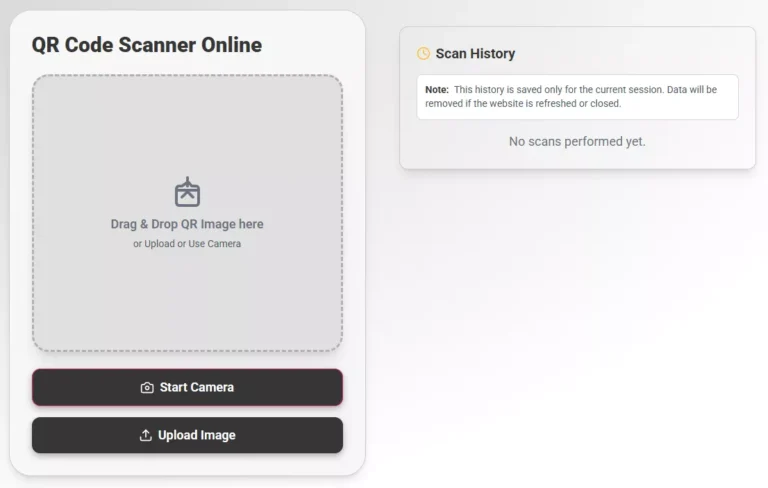
Step 1: Open the Printen QR Code Scanner
Visit Printen QR Code Scanner using Safari, Chrome, or any other browser on your MacBook. The tool loads instantly and is completely free to use.
Step 2: Allow Camera Access
Click the “Start Scanning” button and grant access to your Mac’s webcam. This allows Printen to detect QR codes in real time.
Step 3: Position the QR Code
Display the QR code which is either printed out or shown on some other gadget, in front of the camera of your MacBook. For precise detection, it needs to be in the center, horizontally, and lighted properly.
Step 4: Check Instant Results
The tool will after a few seconds do an automatic scanning of the QR code and show the decoded information like a web link, a person’s contact details, Wi-Fi settings or a text. You can either click on the link or just take the data by copy.
Step 5: Scan From an Image (Optional)
If you already have a QR code saved on your computer, you can upload it instead. Just click the “Upload Image” option and let the tool scan QR code from the image in one click.
Conclusion
Learning to scan QR code on MacBook is a piece of cake if you have the right tools. Actually, anybody can decipher any QR code in a matter of seconds through online QR code readers and third-party apps, or by simply taking advantage of the iPhone’s camera. Live webcam scanning or image uploads for precise results are options for Mac users.
You don’t have to use just your phone anymore, as free tools put your MacBook on equal terms with handling QR codes. The next time you see a QR code in an e-mail, on the internet, or printed material, follow these quick steps to scan it effortlessly right from your Mac.
Frequently Asked Questions
Yes, you can use an online QR scanner to scan directly from your browser using your webcam or an uploaded image.
Upload the image to a reliable tool like Printen QR Code Reader to scan QR code from image in seconds.
Poor lighting or blurry codes can cause issues. Try repositioning or using a clearer image file.
Yes, use Apple’s Continuity Camera to scan via iPhone and view results instantly on your Mac.
Yes, as long as your browser supports webcam access or you upload an image for decoding.
(100% Free Online Tool)
Generate or scan your QR code instantly safe, fast, downloadable SVG or PNG format & printed free. No signup required.